Customers with Nexa Base or Nexa Pro can use the Schedule module to add a job to a specific machine and track production across multiple machines and shifts.
NOTE! Nexa makes a job available in the Schedule module as soon as it exists in a project, except when a job has duplicates. Re
Click Schedule in the sidebar to schedule and manage production jobs.
Overview of the Schedule module
The Schedule module includes a Queue view and a Gantt view. You can use either view to manage production, but the Gantt view includes additional scheduling settings.
Queue view
Use the Queue view to add a job to a machine and to manage production with a focus on machines.
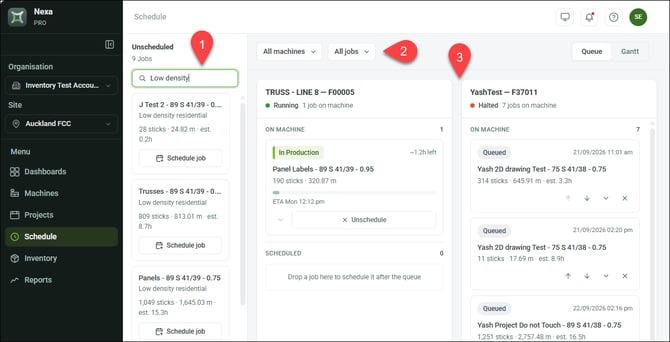
| 1 | Unscheduled jobs | Shows the name, project, profile, gauge, and totals for each job that can be queued up on a machine |
| 2 | Filters | Allows you to filter jobs by machine and state/status |
| 3 | Machines |
Shows machines, plus any queued or scheduled jobs with thier state/status and allows you to export or schedule jobs |
Gantt view
Use the Gantt view to schedule a job at a specific time slot and to manage production with a focus on a time schedule.
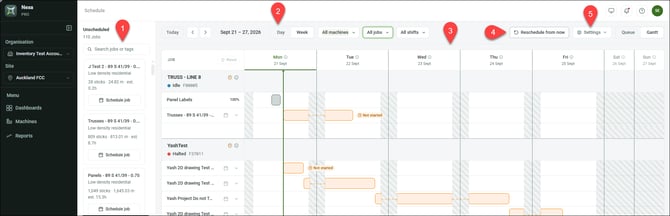
| 1 | Unscheduled jobs | Shows the name, project, profile, gauge, and totals for each job that can be queued up on a machine |
| 2 | Filters |
Allows you to filter jobs in the schedule by day/week, machine, job state/status, or shift |
| 3 | Job schedule | Shows all jobs, per machine |
| 4 | Reschedule from now | Reschedules remaining work of a selected job to the current time |
| 5 | Settings | Sets jobs to run back-to-back and/or outside set shifts, and set if completed jobs appear in the job schedule |
Queuing a job on a machine
In Schedule (Queue view or Gantt view), click Schedule job and select a machine or (Queue view) drag a job to a machine.
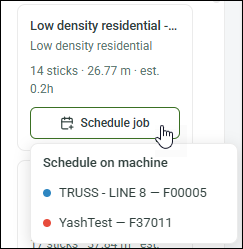
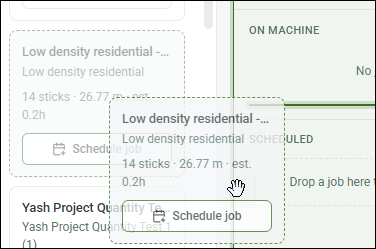
The job is now in a Queued state with no set start time. You can export the job (to manually upload to a machine), set a start time, create repeats, and set estimated duration.
NOTE! Dragging a job to a machine in the Gantt view forces you to schedule a specific start time.
Scheduling a start time for a job
You can schedule a job by setting a start time.
NOTE! The start time is when an operator can begin actual production. Operators begin production by loading a job via a machine's touchscreen (how operators load a job).
Schedule a job for the next available time
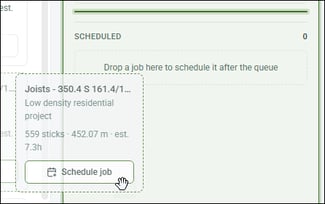
In Schedule (Queue view), drag a Queued or Unscheduled job to the Scheduled section of a machine.
Schedule a job for a specific start time
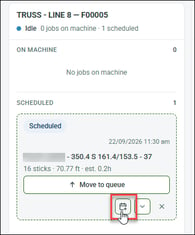
In Schedule (Queue view or Gantt view), click the calendar icon for a job, then pick a date and time.
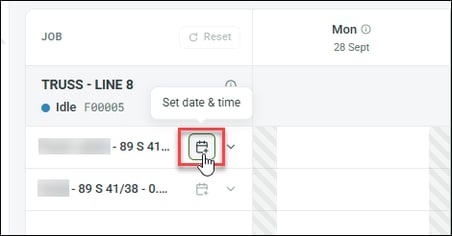
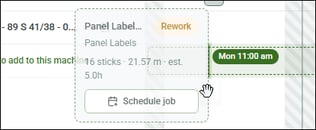
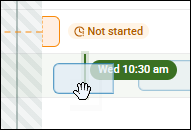
Or (Gantt view), drag an unscheduled or scheduled job to a specific date and time.
Additional job actions
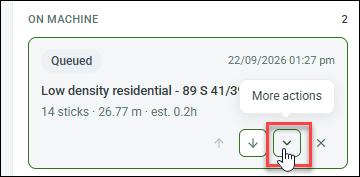
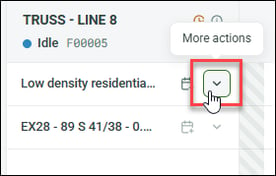
Click More actions for a job (in Queue or Gantt view) to export, or repeat a job, or take other action.
| Action | Info | |
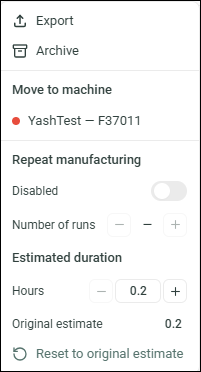 |
Export | Downloads an .rfy to manually upload the job to a machine |
| Archive | Moves the job from Schedule to Archive | |
| Repeat manufacturing | Sets the job to repeat by a specified number of runs; you can also set repeats in Projects | |
| Estimated duration | Adjusts the Nexa-generated duration estimate |
Additional Gantt view options
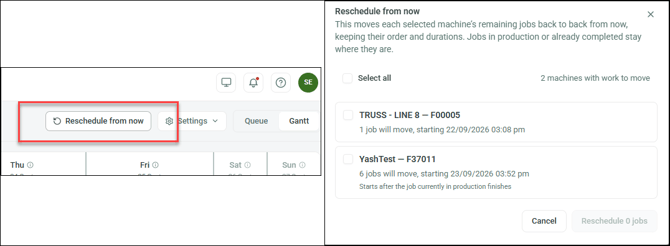
Rescheduling jobs as of current time
Click Reschedule from now to set all jobs on a selected machine to the next available time slot (as of the current time).
Setting job rules
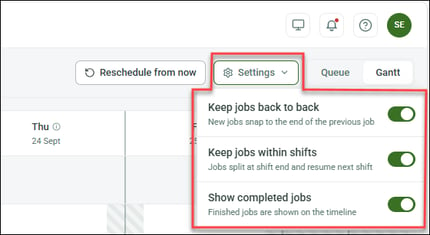
Click Settings to set how jobs are displayed in the schedule.
| Option | Info |
| Keep jobs back to back |
Sets a job to start after the last scheduled job (when you click Schedule job) or snaps the insert indicator to the end of the last scheduled job (when you drag and drop a job) |
| Keep jobs within shift |
Shows a job in the schedule as running in shifts only* when its duration exceeds a single shift (instead of as continuing through off-hours) |
| Show completed jobs | Shows jobs in the schedule even when they have Completed status |
*NOTE! Keeping a job within shifts does not prevent operators from working or finishing a job off-hours (about setting up shifts).
About states and status
Nexa applies a state or status to each job to help you keep track of the production process.
NOTE! Nexa only shows states (Queued, Scheduled, Rework) in the Schedule module.
| Status | Info |
| Awaiting Scheduling | Job has a Queued or Scheduled state, but has not reached start time |
| Awaiting Production | Job has reached start time, but operator has not loaded it on the machine |
| Sent to Machine | Operator has loaded job on machine, but has not begun production |
| In Production | Job is in progress |
| Manually exported | Job has been downloaded to be manually loaded on the machine |
Managing an item marked for rework
Users with access to a project can use the mobile app to mark a finished panel for rework. Items that are marked for rework will reappear as an Unscheduled job in the Schedule module (in a Rework state). You can queue up and schedule a rework job as you would any other job.