
Operators must load a job file from a particular source before beginning production.
Job file structure
A job file contains all the design information the machine needs to produce each stick (i.e., profile shape, required steel, required tools) for a specific project.
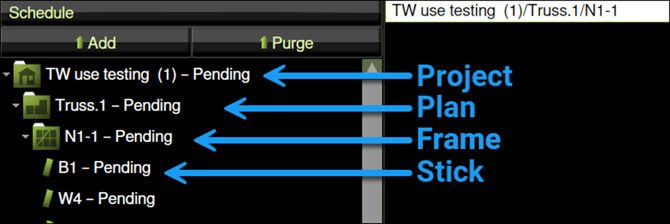
All loaded job files appear in the Menu panel in the Schedule screen. Jobs are listed from top to bottom in the order they will be produced. Each job has multiple folders in a directory-style hierarchy: project, plan, frame and stick.
Loading a job file for production
Operators can load a job file from a local disk, a USB drive, a network drive, or FRAMECAD Nexa.
NOTE! For USB drives: Insert drive into USB port and wait for USB LED indicators to stop flashing before loading.
To load a job file, in Factory, under Schedule:
Tap Add. The Add Job window appears. Tap a source under Select source.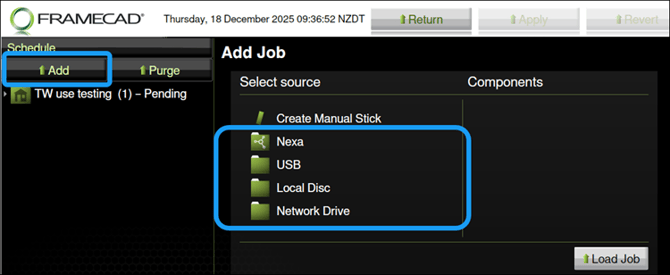
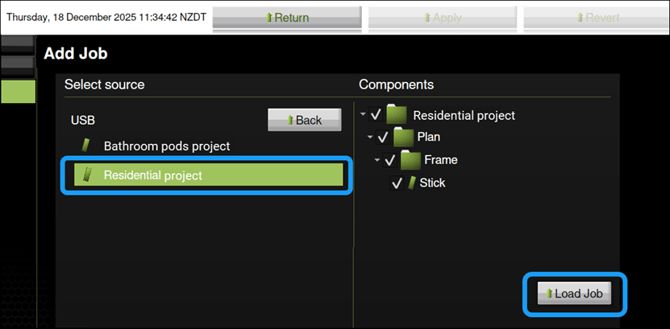
All jobs for that source appear. Tap the relevant job file. The job's folders or details (if source is Nexa) will appear under Components. Tap Load Job.
The job is added to the bottom of the Schedule in the Menu panel.
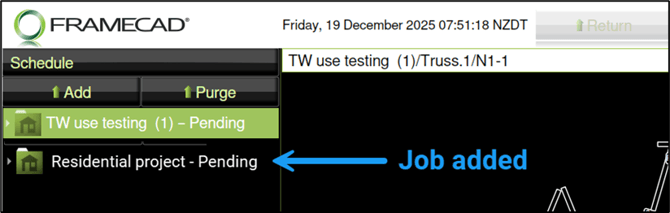
You can now run the job*.
*NOTE! Factory2 displays a job in red if the machine is not set up to produce the profile shape for that job or if the wrong steel was loaded on the machine (assuming operators entered information about the steel when they loaded it).
Checking a job file for steel and profile shape
Factory2 will display a job in red if the profile shape or steel in the job file do not match the machine setup or current steel. If a job displays in red:
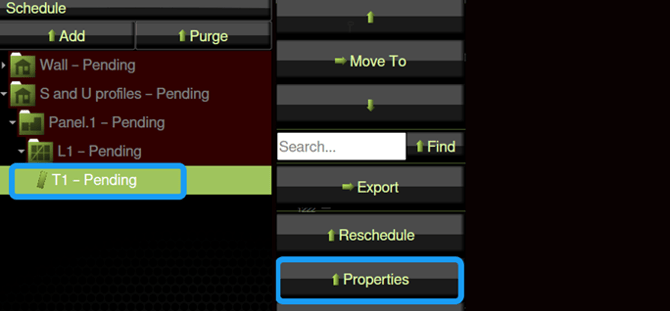
Tap a stick in the affected job. A window appears. Tap Properties.
You can find the stick's properties under Section.
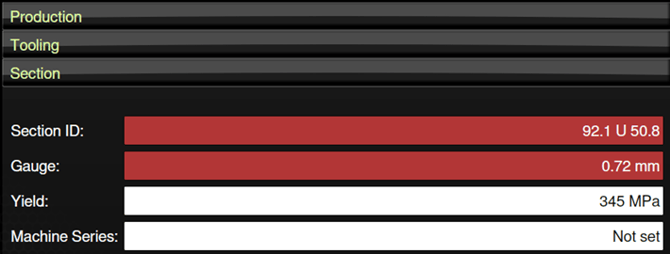
Stick properties include:
| Section ID |
The stick’s profile and size where |
| Gauge |
The steel thickness required to make the stick. |
| Yield |
The yield strength of the steel required to make the stick. |
| Machine Series |
The machine model for which the stick was designed. |
If Gauge or Yield are red, change coils (See Loading steel/changing steel coils.)
If Section ID is red, engage/disengage the lipbox rollers. (See Changing the profile shape.)
F450iT only: Red can indicate that the job requires a different tool in toolbox. To check, tap Tooling. If a tool is red, swap the tool cartridge (See Swapping a tool cartridge (F450iT only for steps.)