
Generally, detailers begin working on a project by creating a lower-level wall layout. This article follows a generic workflow for creating any wall layout:
Draw a building outline from a floor plan
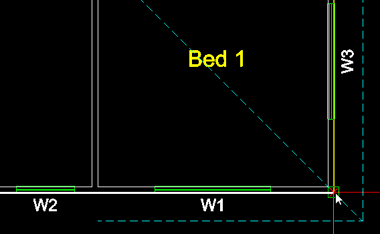
Detailers typically outline a building by drawing over the exterior walls of an architect's floor plan. (See how to import plans and set plans as blocks.) For each level that requires a wall layout:
| 1. Copy or move a floor plan to a border that you will use for a wall layout. |
| 2. Focus on the border and center the plan (type CTR, press Enter and select the plan). |
| 3. Assign the plan to a temporary layer. |
|
4. Use the polyline to draw over the outer edge of the floor plan. |
 |
|
Repeat steps 1 - 4 in a separate border for each required wall layout. |
TIP! Before you add wall panels, copy the building outline into the border that you will use for your upper-level joist layout or a foundation/slab layout (if needed) (Read how).
Now you can add panels to the wall layouts.
Assigning a temporary layer
A temporary layer makes it easier to keep your work aligned with an architect’s plans. You can use up to six temporary layers (LX, LX1, ...LX5). To assign items to a temporary layer:
| 1. Type LX (or LX1, LX2, etc.) and press Enter. |
| 2. Select item(s) for the specified layer and press Enter |
Type LT (or LT1, LT2, etc.) and press Enter to hide/show the plan as you draw the building outline.
Drawing a building outline with a polyline
You can outline a building by drawing a polyline over the exterior walls of a floor plan. If you assigned the plan to a temp layer, type LT (or LT1, LT2, etc.) and press Enter to hide or show the plan as you draw the outline.
| 1. Type P and press Enter. |
|
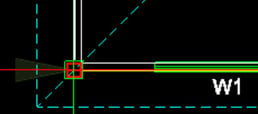
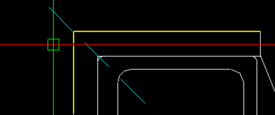
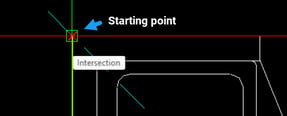
2. Click to insert a starting point at the corner of an exterior wall. |
|
|
| 3. Click the corner at the opposite end of the wall to draw the first segment and to start the next segment. |
 |
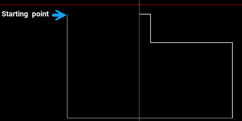
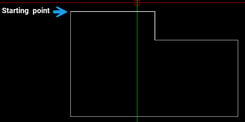
| 4. Continue drawing segments over the exterior walls. |
|
5. At the last segment, type C and press Enter. The last segment will connect to the starting point and complete the polyline. |
  |
Copy a building outline to use for a joist layout
Use the building outline from an upper-level wall layout for that level's joist layout. To copy a building outline to the same relative position in another border:
|
1. Type CV and press Enter. |
| 2. Click a building outline and press Enter. |
| 3. Click inside a border where the joist layout will be. The outline will be pasted to the same relative position in the target border. |
TIP! You can copy the ground floor building outline into a separate border if you require a slab/foundation layout. This is typically for modelling purposes only.
Draw or add wall panels in wall layouts
Detailers use two commands to input wall panels in layouts.
| Command | Creation method | Use to... |
| ADD | By Points |
draw a coded wall (i.e., Load Bearing, Non Load Bearing or Structural). |
| By Lines | turn a selected line or polyline into a coded wall. | |
| PD | N/A | draw an uncoded wall to be coded layer. Useful for when you will not know which walls will be load-bearing, structural, or non-structural until you add upper-level joists and/or roof trusses. |
CAUTION - Before adding wall panels - check truss settings (TSET) for correct roof load and wind load (which affect wall panels) and check panel settings (PSET) for correct material, stud placement, wall creation method, and other parameters. (Learn more.)
NOTE! The below assumes a polyline was used to outline the building from an architect's plan (assigned to a temporary layer) and that the external walls are all load bearing.
Adding external wall panels to a layout (ADD)
To turn a polyline into a coded wall, focus on a wall layout border, then:
|
1. Type ADD. A dialog appears. |
|
2. In the Wall tab, select or enter: |
|
• Panel Usage (e.g., Load Bearing) |
| Change other settings as required. |
| 3. Click Create. |
|
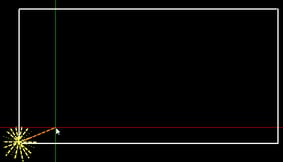
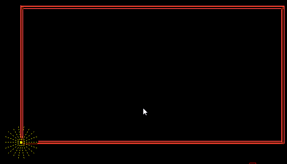
4. Click the polyline, then click to set an offset direction. The polyline will appear as coded panels. |
  |
| Repeat steps 1 - 4 in a border used for an upper-level wall layout. |
Drawing internal wall panels in a layout (PD)
Use the PD command to draw uncoded wall panels when you do not know which walls will be load-bearing until you add upper-level joists and/or trusses. You will have to code these panels later using the LI command. To draw panels, focus on a wall layout border, then:
| 1. Type PD and press Enter. |
| 2. Click to enter a start point for the wall panel. |
| 3. Click to enter an end point for the panel. |
|
4. Click to position the panel relative to its centerline. |
Repeat for each internal wall frame in the layout.
NOTE! Draw wall panels over openings. You will add openings later.
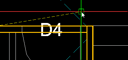
TIP! Draw internal wall frames starting with the room in the bottom left-corner of the border and proceeding in a counterclockwise direction.
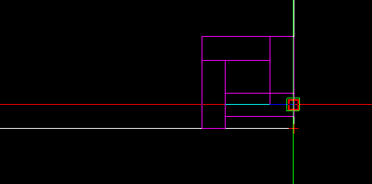
Adding columns (using wall panels)
Focus on the border with the relevant wall layout, then:
| 1. Type ADD and press Enter. A dialog appears. |
| 2. In the Wall tab, select Structural for Panel Usage and By Points for Creation Method. |
| 3. Click Create and insert panels in the layout. |
Adding beams
Use the ADD command to add beams to a wall layout then use the PLB command to lap the beams into walls (ensuring the beams are supported).
CAUTION! Steelwise only details beams and does not transfer the loads they carry to structural elements, calculate their loads, or account for their loads in its analysis. Please be sure that a qualified engineer designs beams separately.
Focus on border with the relevant wall layout, then:
| 1. Type ADD and press Enter. A dialog appears. |
| 2. In the Beam tab, select the correct System Name (i.e., data file) Beam Category, and reduced level (Beam Top RL or Beam Bottom RL). Select By Points for Creation Method. |
| 3. Click Create, acknowledge the caution message, and insert the beam in the layout. |
Wall panel color key
| Default Steelwise Color | Panel usage (i.e., coded as) | |
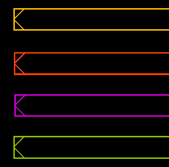 |
Orange | Uncoded |
| Red | Load Bearing | |
| Magenta | Structural | |
| Green | Non Load Bearing | |
NOTE! You can use a different color for a coded wall by changing the Drafting Colour setting when you type ADD or LI.
Edit wall layout as required
Use editing commands to move, lengthen/shorten, and adjoin walls correctly as needed.
TIP! Run integrity checks to help identify walls that need editing.
Extending a wall panel
To extend a selected wall to a target wall:
| 1. Type ME and press Enter. |
| 2. Select a target wall (or hold Alt and select to extend to the target wall's far side). |
| 3. Select the wall to extend. |
Changing corner orientation
To change the orientation of two walls that form a corner:
| 1. Type MF and press Enter. |
| 2. Select the wall that should be longer. |
| 3. Select the other wall. |


Cutting a wall
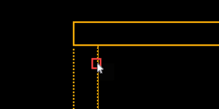
To cut a wall (e.g., a wall that exceeds maximum length):
| 1. Type MC and press Enter. |
| 3. Select a wall. |
| 4. Select point(s) where the wall should be divided. |
Add openings to wall panels
Detailers typically add an opening by defining its header height and/or dimensions, selecting an input method, and selecting a location in a panel to place it. To add a door or a window:
| 1. Type UD or UW and press Enter.* |
| 2. Follow prompts to change settings or enter the header height (windows only), opening height, and opening width. |
| 3. Select an input method (see below) and press Enter. |
| 4. Select a location(s) in wall panel(s) to place the opening(s). |
Openings are added with labels (including dimensions).
| Input method | Info |
| Auto |
Adds an opening offset from any intersecting wall by the default auto offset distance in PSET. |
| Centre | Centers an opening between two selected points in a wall panel. |
| Multiple | Adds a specified number of evenly spaced openings between two selected points in a wall panel. |
| Point Offset | Adds an opening offset by a specified distance between a selected point and the center of the opening. |
| Point | Adds an opening centered on a selected point in a wall panel. |
| Side | Adds an opening offset by a specified distance between a selected point and the nearer side of the opening. |
*NOTE! Alternatively, you can use commands to input defined doors and defined windows (as set in PSET).
Label wall panels
Wall labels allow you to manage and reference panels easily throughout a project and, ultimately, help builders assemble panels onsite more easily. (You can review and adjust wall panel label settings in PSET). To add wall labels:
1. Type LA and press Enter.
2. Select wall panels to label.
3. Confirm or type a starting number as prompted and press Enter.
NOTE! You may need to label walls again if you add or code walls later.
Insert a reference point
Steelwise uses reference points to correctly transfer loads from a truss or joist to the affected walls.
NOTE! Insert a primary reference point in the border for the lower-level wall layout, at a point common to all other layouts (typically a corner of the building). Insert a secondary reference point at the corresponding location in each remaining layout.
WARNING! Each border can only have one reference point. The first reference point you place will be a primary reference point. Each secondary reference point must be placed in the same corresponding position in each border.
To add a reference point:
| 1. Type REF and press Enter. |
| 2. For primary reference point: Click inside a border to insert a primary reference point. or Hold Alt to and click inside a border to insert a primary reference point there and a secondary reference point in each other border. For secondary reference points: Click inside a border to insert it. |
Run integrity checks on walls
FRAMECAD® recommends running integrity checks regularly throughout a project to help identify drafting and detailing issues. To run an integrity check:
| 1. Focus on a border with a wall layout. |
| 2. Type IC and press Enter. |
| 3. (Optional) Type S and press Enter to change options if needed. (Click for option details). |
| 4. Press Enter to check all items in the border (or select items to check and press Enter). |
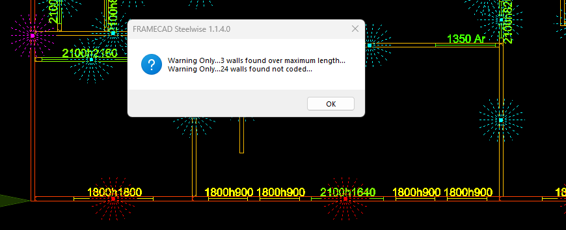
A summary window appears if Steelwise detects any errors. A marker appears in the layout indicating where the errors were found.
Now you can create truss layouts for the trusses that will affect the wall layout you've created.