
Nexa Pro customers can use the Inventory module to manage steel coil inventory. Nexa inventory features allow you to assign, trace steel to its source mill and/or distributor and set low stock/re-order indicators.
Configuring inventory management
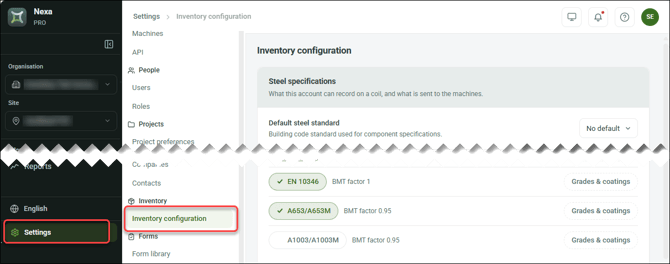
Click Settings in the sidebar, then click Inventory configuration.
Controlling what steel to track
Under Steel specifications, select options to control what coils can be tracked based on its in the current Nexa account.
| Setting | Info |
| Default steel standard | Specifies a steel standard to apply when adding coils to inventory. |
|
Designations offered |
Determines what steel standards and gauges can be tracked based on specified measurement system(s). |
| Standards, grades and coatings |
Click an item to enable or disable inventory tracking for a specific steel standard, grade, coating, or gauge (thickness). |
| Gauges |
Setting low stock indicators
Under Stock Levels, enter options for when Nexa will show stock is low (in the Dashboard and in the Inventory module) for a coil.
| Setting | Info |
| Coil low stock alert |
Sets the length of remaining stock for any coil at which Nexa indicates stock is low. |
| Coil metric display | Sets Nexa to measure remaining stock as length or weight. |
| Reorder threshold overrides | Sets the length of remaining stock for any coil of a specific width and gauge at which Nexa indicates stock is low. |
Adding a coil to inventory
Use the Inventory module to enter a coil into an account's inventory.
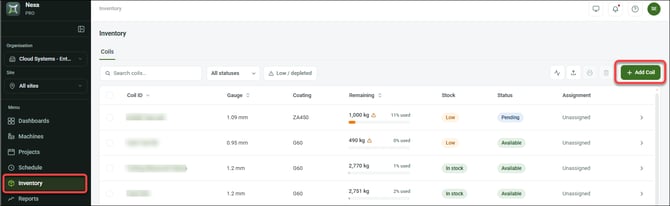
In the Inventory module, click Add Coil.
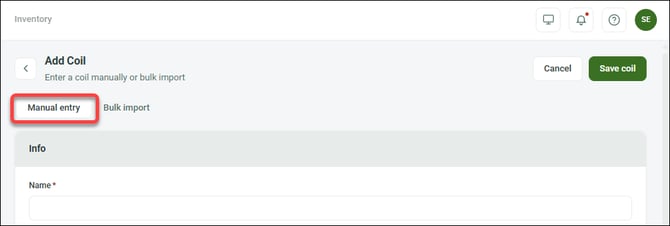
In the Add Coil screen, click Manual entry and enter a coil's details (scroll for adding coils in bulk).
| Section | |
| Info | Enter the coil's name and (optional) mill and intermediate source, inventory status and order status (i.e., owned or on consignment). |
| Nominal | Enter the coil's gauge, weight, width, steel standard, grade, coating, and (optional) change tensile strength and/or yield strength. |
| Measured | (Optional) enter a measured thickness, weight and/or width. |
| Notes | Optional |
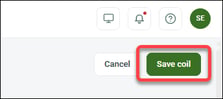
Click Save coil when ready.
Nexa adds the coil to the Inventory module grid.
Adding coils in bulk
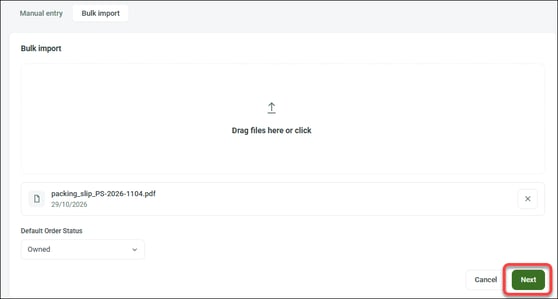
You can add multiple coils by uploading a file (i.e., a packing slip, a spreadsheet) with coil information. In the Inventory module:
| 1. Click Add coil, then click Bulk import. The bulk import screen appears. |
| 2. Drag or upload files, select order status (i.e., owned or consignment), and click Next. |
 |
| 3. Check coil info that Nexa generates and change as required, then click Import. |
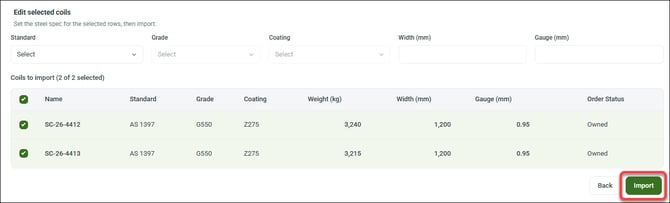 |
Nexa adds the coil(s) to the Inventory module grid.
Viewing and updating a coil in inventory
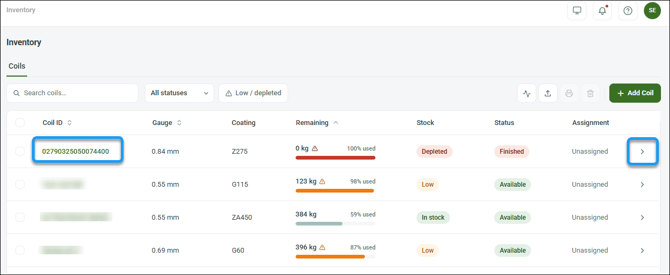
The Inventory module lists all coils added to the account's inventory and shows high level information about each coil including remaining steel and stock status.
Click a Coil ID (or right arrow) to open a coil's page and view/edit its information, label, and forms.
In the coil's page, click Edit to update information.
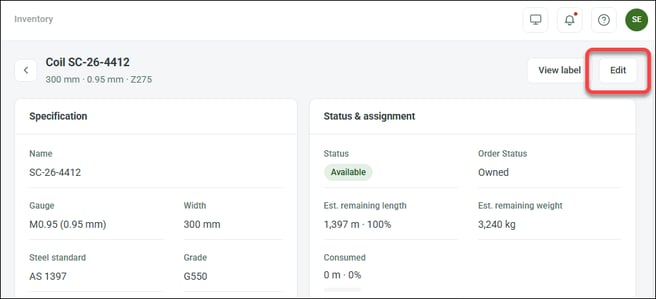
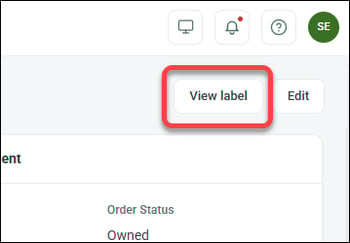
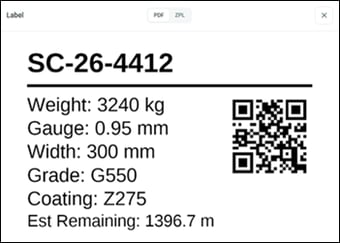
Click View label to review and scan its QR code (if required).
Adding a form to a coil
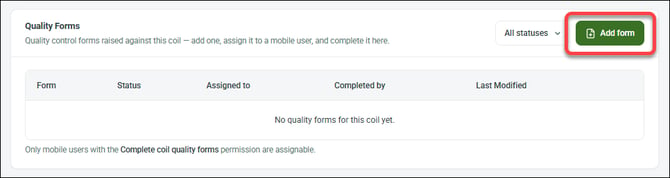
You can add one or more forms to a coil. In a coil's page, under Quality Forms, click Add form.
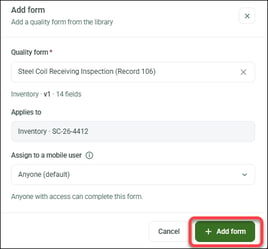
In the Add form dialog, select a form from the library, assign to user(s), then click Add form.
Nexa adds the form to the coil's page.
NOTE! If no inventory form exists, follow these steps to create one (and for Applies to, select Inventory).
Completing a form for a coil
Users with relevant access can complete a form for a coil in the web app or the mobile app.
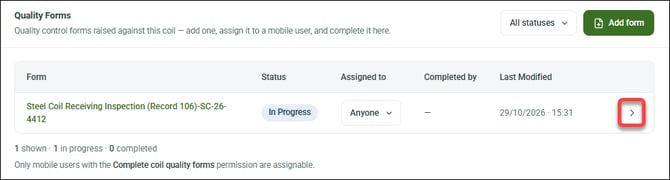
To access a form for a coil via the web app, open the coil's page and under Quality Forms, click the right arrow for a form.
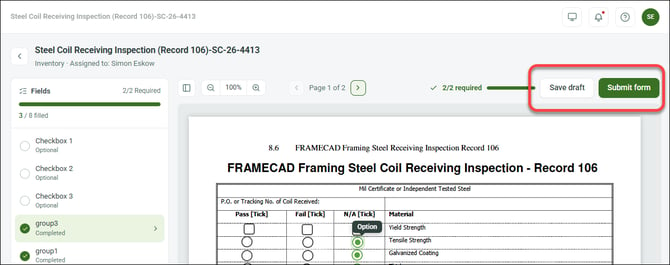
In the form's page, enter data as required and click Save draft to complete later or click Submit form when ready.
Printing labels, removing coils from inventory, and other actions
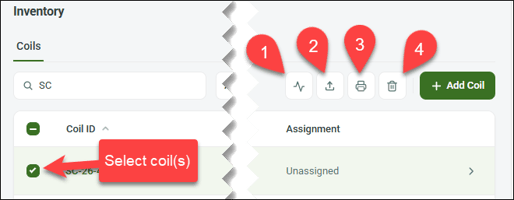
Use the four buttons above the top right corner the Inventory module grid to take additional action.
| Action | Info | |
| 1 | Retrieve current status |
Click to update remaining steel, machine assignments and other information (based on data from machines) for all coils. |
| 2 | Export coil information | Click to export a .csv file with information about all coils for a specified date range. |
| 3 | Print labels | Click to export printable labels for selected coils. |
| 4 | Delete selected | Click to remove selected coils from inventory. Coils removed from inventory will not appear in coil information .csv files. |
About maintaining accurate coil data
Nexa tracks machine assignments for coils based on data reported by machines. The accuracy of this data depends on operators entering coil information whenever they load a coil onto a machine.
NOTE! Operators enter information about a coil in a machine's touchscreen (read how).