
The FRAMECAD Nexa mobile app allows users to scan labels and (for Nexa Pro customers) view and work on projects and inventory.
Downloading the mobile app
You can find the FRAMECAD Nexa app on Google Play or the Apple App Store. Use your Nexa credentials to log in.
Main app screens
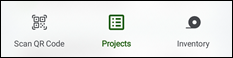
Tap Scan QR Code, Projects, or Inventory to scan a label or to access a project or inventory.
Accessing item actions
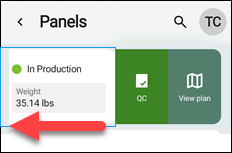
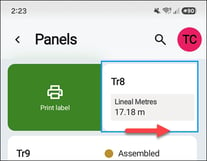
Swipe an item left and/or right in Projects or Inventory to take certain actions.
Projects actions
| Projects | ||
| Item | Swipe left | Swipe right |
| Plan | QC form, 2D Drawing (i.e., layout or plan) | Left |
| Project | QC form | N/A |
| Panel | Mark for rework and QC form (via three-dot menu); View plan | Print label |
| Stack | Delete, QC form | Edit |
| Stick | Mark for rework, QC form | N/A |
| Inventory | ||
| Item | Swipe left | Swipe right |
| Coil | Delete coil | Print label; Load coil and QC Forms (via three-dot menu) |
Accessing a project
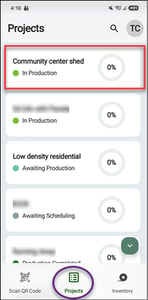
In Projects, tap a project, then tap an item to view or take action.
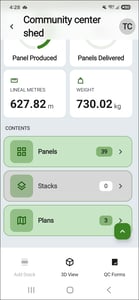
| Item | Tap item to... |
| Panels | rework panels or sticks, fill out forms for panels or sticks |
| Stacks | edit or delete a stack, or fill out a form for a stack |
| Plans | access panels by plan (i.e., layout) |
| Add Stack | create a stack for the project |
| 3D View | view panels in structural context |
| QC Forms | fill out a form for the project |
Filling out a form
Tap the QC forms icon ( ) wherever it's available, select the required form, and enter data, as required. Tap Save draft to continuing working later. Tap Submit when done.
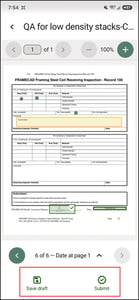
Continue working on a saved draft
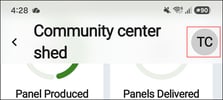
To find a saved draft, tap your initials at the top right corner to access the Settings screen.
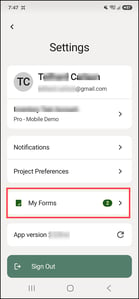
In Settings, tap My Forms then select the form in progress.
Marking a stick or panel for rework
You can mark a completed stick panel for rework if an issue requires you to produce it again.
To mark an item for rework, scan its label or locate the item in a project:
| 1. Access the relevant project and tap Panels. |
| 2. To rework a panel: Tap a panel or swipe it left and tap the three-dot menu icon. |
|
To rework a stick: Tap a panel, tap Sticks, and swipe a stick left. |
| 3. Tap Mark for rework, select a reason and (optional) enter a message, and tap Submit. |
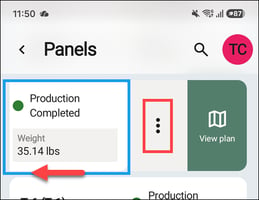
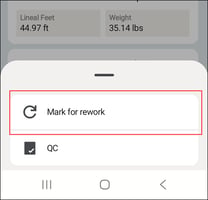
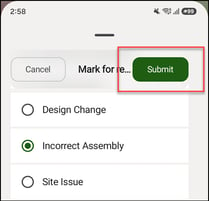
The panel will appear in the Schedule in the web app with a Rework state. An Admin user can reschedule production of the panel as a separate job. It will also appear in the Rework section of the project page, with the reason and any notes you added.
Scanning a label
The mobile app opens to Scan QR Code by default. Use this screen to take action by scanning a panel label.
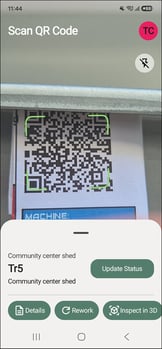
| Action | Tap to... |
| Update Status | manually change the status and (optional) include a message |
| Details | view panel totals and dimension and access its sticks |
| Rework | mark panel for rework, select a reason, and (optional) include a message |
| Inspect in 3D | view panel and info in context of the structure's 3D model |
Viewing app settings
Tap your initials to access app settings and your saved forms.
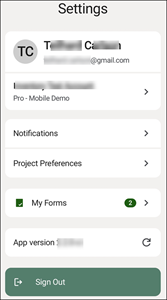
| Setting | Tap to... |
| Account name | switch accounts |
| Notifications | turn all or selected notifications on and off |
| My Forms | continue working on a form saved as draft |