
Guidance for troubleshooting issues that arise in regular production quality checks.
Troubleshooting scratches, burrs, smearing and other issues
Some stick surface issues are commonly due to steel rubbing against a part of the roll-former. The solution may depend on where you see the scratching, burrs, or smeared ink.
| Scratching... | May indicate... | Possible solution |
| Across flange | General rubbing | Increase lubrication |
| Along flange | Steel rubbing side of swage | Check flanges are square |
| Steel rubbing side of shear | Check flanges are square and adjust shear infeed rollers | |
| On web top (i.e., flanged side) | Steel too high in swage |
Lower swage infeed roller and/or raise swage assembly |
| On web bottom (i.e., "flat" side) |
Steel too low in swage | Raise assembly infeed roller or lower assembly |
| Steel too low in shear |
| Other issues... | May indicate... | Possible solution |
| Burred stick edge | A blunt/worn shear blade | Change shear blade |
| Incomplete hole punch | Blunted or worn tool | Change tool in toolblock |
|
Jagged hole punch edge |
||
| Irregular hole shape | ||
| Smeared ink | Too much lubricant | Decrease lubrication |
Adjusting lubrication
A stick should have an even, wet layer of lubricant when ejected from the Outfeed.
| If a stick is... | Do this... |
| Too dry |
Check lubricator tank and fill, if necessary. See Checking and filling steel lubricator tank |
| Too dry and tank not empty | Increase lubrication flow |
| Too wet | Decrease lubrication flow |
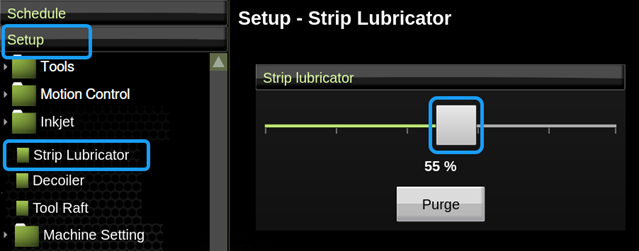
To adjust the flow, in Factory2, tap Setup > Strip Lubricator, then tap and drag the control bar to increase or decrease the flow.
Avoiding steel jams
Steel jams can indicate an issue with either the steel or the machine setup.
| Jam location | Possible solution |
| General |
Check steel is correct grade, thickness, and width; change if required |
| At a tool position | Check tool is tight and aligned; tighten and adjust as required |
| Between tool positions | Mak sure steel is centered at guides; adjust guides as required |
Troubleshooting faint print issues
Faint print on a stick may indicate printer maintenance is required.
NOTE! Printer maintenance is part of daily setup and shutdown workflows. Follow workflows to minimize risk of printer issues.
Cartridge printer system
If there is faint print on the stick, remove and clean the cartridges. If the print remains faint, replace the cartridges.
Bottle printer system
If faint print appears on a stick, try these possible solutions, in the following order.
| Possible solution | Details |
|
Purge with ink |
In Factory2, tap Setup > Marking > Inkjet Printer then under Control, tap Select Ink > Purge |
|
Check ink bottle |
If empty/near empty, replace bottle |
|
Check ink and cleaner bottle caps |
If loose, tighten bottle caps |
|
Check pressure |
If pressure is under 9.5 PSI, contact FRAMECAD support |
|
Check tubes |
If tubes in printer cabinet or at printer heads are loose or damaged, replace tubes |
|
Check ink bottle cap filter |
If clogged, replace filter |
|
Purge with cleaner |
In Factory2, tap Setup > Marking > Inkjet Printer |