
Operators can power up the machine after completing the daily preparation.
Do power up safety checks
Always complete these checks before turning the Isolation switch to the ON position.
|
Power up safety checks |
|
No people are in machine danger zones |
|
All roll-former cabinet covers are closed |
|
All decoiler cabinet covers are closed |
|
The decoiler safety guard is in place |
|
The decoiler dancer arm is resting on the ground |
Power up, log in, clear alarms
NOTE! A FRAMECAD machine powers up in Manual mode and with the safety system activated by default. Operators must clear alarms and reset the safety system after powering up and logging in. See About Machine operating modes.
Go to the Isolation switch (Infeed end, left side) and do safety checks.
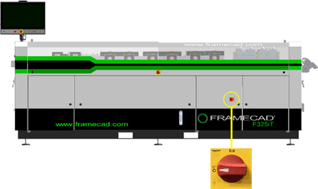
When it is safe:
1. Turn the Isolation switch ON. The roll-former’s internal fans will activate and make a humming noise.
2. Go to the Operator touchscreen (Outfeed end). The touchscreen will display a boot-up sequence ending in a five-second Admin menu countdown.
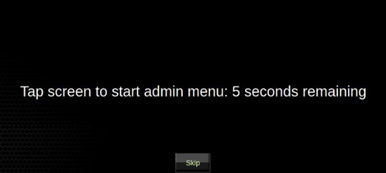
NOTE! ONLY use the admin menu to adjust a setting.
3. When the login window appears, tap your username, enter your PIN, then tap Login.
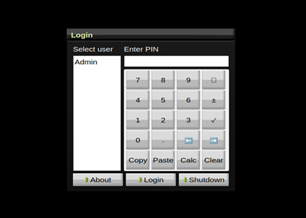
TIP: Contact a supervisor if you do not have a username and PIN.
4. After login, Factory2 opens. A list of alarms appears.
It is normal for alarms to appear after power-up. Tap Acknowledge All to clear the alarms.
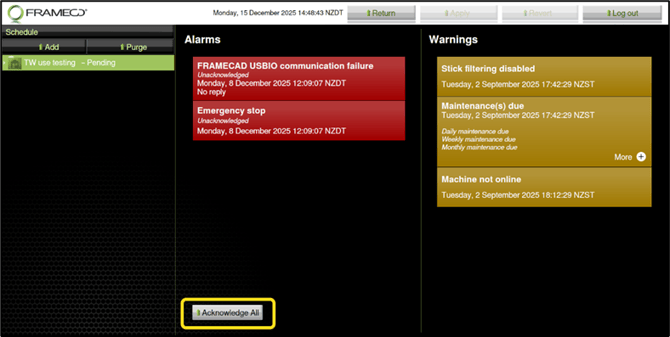
5. Press  (Safety Reset button) on the Operator touchscreen unit to deactivate the safety system.
The machine is now powered up and in Manual mode.
Test the safety control system
Operators using roll-formers manufactured before April 2026 should check the safety control system once a day before production. For newer machines, only test the safety system after you have relocated or repositioned the roll-former and decoiler.
NOTE! Separately test each Emergency Stop button (on roll-former and decoiler) and each roll-former sliding cover.
With the machine powered up and in Manual mode, and the sliding covers closed:
- Turn an Inch switch toward the Outfeed. The hydraulic system will activate. The hydraulic pump will make a noise.
- Press an Emergency Stop button or open a sliding cover.
- Do these checks:
| Check | Normal result |
| Listen for hydraulic system | No hydraulic pump noise |
| Turn any Inch switch | Inch switch does not move left or right |
| Check Operator touchscreen | Factory2 displays Safety circuit tripped and Emergency Stop system activated (or Guards open) alarms |
|
The |
|
| If testing Emergency Stop button, press button again | Button remains pushed in |
 (Safety Reset button) blinks alternately
 +
+  +
+  (Start, Pause, and Software Reset buttons)
NOTE! If any check result is not normal, the test fails. DO NOT USE the machine. Contact FRAMECAD for support.
If every check has a normal result, the test passes. Reset the safety system and repeat the tests for each remaining pushbutton and sliding cover.
Resetting the safety control system
Operators must reset the safety control system after testing each sliding cover and Emergency Stop button.
1. If you tested an Emergency Stop button, twist the button clockwise until it releases.
If you tested a sliding cover, close the cover.
2. Go to the Operator touchscreen. Tap Acknowledge All in Factory2.
3. On the Operator touchscreen unit, press  (Safety Reset button).
Run a daily lubricator purge
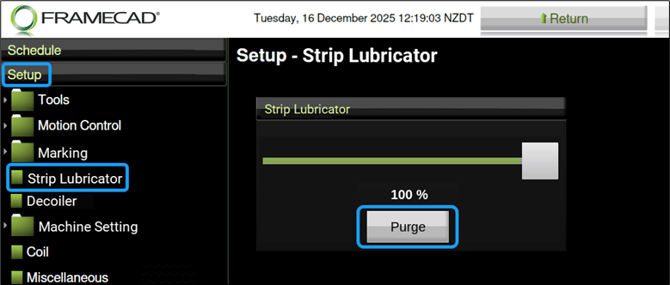
Purge the roll-former lubricator unit every day after testing the safety control system. This will draw lubricator from the tank to the lubricator rollers. In Factory2, tap Setup > Strip Lubricator. In the Strip Lubricator window, press Purge for 15 seconds.
Run printer pressure check (bottle printers only)
Operators using a roll-former with a bottle-based printer must check that the system has enough pressure to draw fluids to the printer heads. Operators must also purge the printer heads with ink to prepare for production.
CAUTION! Ink, cleaner, and waste fluids in bottles are highly flammable and under pressure. Always wear nitrile gloves and safety glasses when handling fluids or bottles. Always consult supplier Material Safety Data Sheets before use.
With the Isolation switch ON and the safety system reset:
- Open the printer cabinet door (Outfeed end, left side).
- Check the Print Compressor Unit readout.
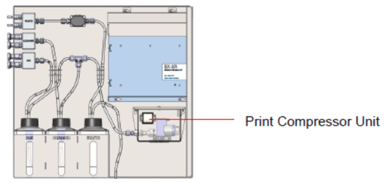
Normal pressure ≈ 10psi. If pressure is lower than 9.5psi, ensure bottle caps are closed completely and check for air leaks in tubes. If pressure is normal, purge the system with ink.
Purge printer heads with ink
Operators using machines with bottle printer systems must purge with ink to ensure tubes are clear of cleaner and that ink is flowing consistently to the printer heads. It is also good practice for operators using cartridge printer systems to
TIP for bottle printers: If there is no steel in the roll-former, insert cardboard between the printer heads before purging to prevent ink from saturating the surface of the heads.
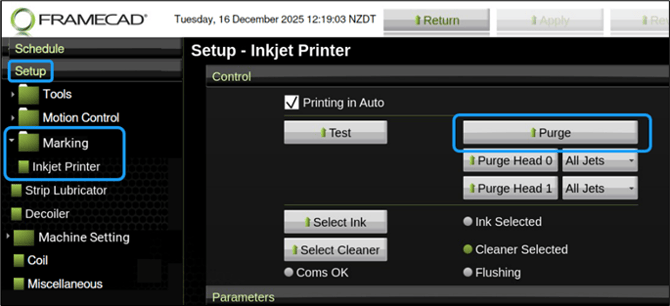
In Factory2, Tap Setup > Marking > Inkjet Printer. The Setup - Inkjet Printer window appears. Under Control, tap Purge.
Operators can proceed with production once the power-up workflow is complete.