
Operators should be familiar with operating modes and navigating the machine control software before running production.
About machine operating modes
Operators mostly run production in Automatic mode. However, you will need to switch modes during a production day depending on your task. Use the buttons on the Operator touchscreen unit to activate a mode.
|
Mode |
Activation and indication |
Use when... |
|
Manual |
Default mode at power-up
|
• Feeding/removing steel to/from roll-former • Loading/unloading coil on/from decoiler• Testing tools |
|
Automatic |
Press |
• Run production jobs |
|
Semi-Automatic |
From Automatic mode: Press Automatic Mode button is lit, flashing |
• Run production jobs with complex sticks |
|
Switch back to Manual: Press |
||
 +
+  (Start + Manual buttons) are lit, solid
 (Automatic Mode button)
  +
+  +
+  (Pause + Software Reset + Manual Mode buttons)
NOTE! If an operator switches from Automatic to Manual while a job is in progress and uses the Inch switch or performs a manual tool operation, the current stick(s) in progress must be scrapped.
NOTE! In Manual mode, the touchscreen displays available tools. In Automatic mode, the touchscreen displays loaded production jobs.
About the Inch switch
A single-profile machine has either two or three Inch switches (depending on the specific model) on either side of the roll-former. Use an Inch switch to move steel when the roll-former is in Manual or Semi-Automatic mode.

TIP: When there is no steel in the roll-former, use the Inch switch to spin the main roller for cleaning.
Using the touchscreen during production
The touchscreen shows a left-hand Menu panel, a Main panel, and software control buttons.
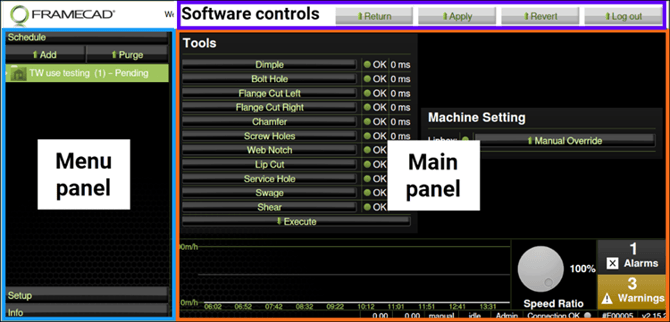
Use the Main panel to enter data. Use the Menu panel to change screens.
| Screen | Use this to... |
| Schedule |
• In Automatic mode: manage production jobs |
| Setup |
• Set up tools |
| Info | View productivity logs, event logs, maintenance data, software version and OS |
* CAUTION! Most machine configuration is factory-set and does not require adjustment. Contact FRAMECAD before making any if you are not certain adjustment is required.
For software controls, press:
- Return to go to the Schedule home screen
- Apply to enter a new value in a field
- Revert to keep the original value in a field
- Log Out to log out of the machine