
FRAMECAD® Nexa is a production management platform for any business that uses roll-forming machines to produce wall panels, trusses, or joists from cold-form steel/light gauge steel (CFS/LGS) coils.
Nexa includes a web app and a mobile app (see Using the mobile app) and comes in three tiers, which determine access to functionality.
About modules and navigating the web app
Click an item in the sidebar to access a module or feature.
| Modules/features | Info | |
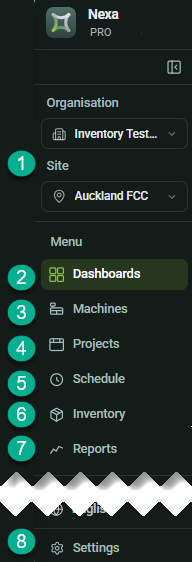 |
1 | Switch Organisation/Site if managing multiple accounts and/or locations. |
|
2 |
Dashboards: View real-time machine, manufacturing (Nexa Base and Pro), and inventory (Nexa Pro) data. About dashboards. |
|
| 3 | Machines: View real-time machine production data and tool health reported to Nexa from connected machines. | |
| 4 | Projects: Create and manage projects, add forms. | |
| 5 | Schedule: Assign production jobs from projects to specific machines. | |
| 6 | Inventory: Track steel coil stock. | |
| 7 | Reports: Create, run, and export reports based on available data. | |
| 8 | Settings: Manage account settings, including users, roles, units of measurement, and customer contacts; create forms (Nexa Pro) |
Dashboards overview
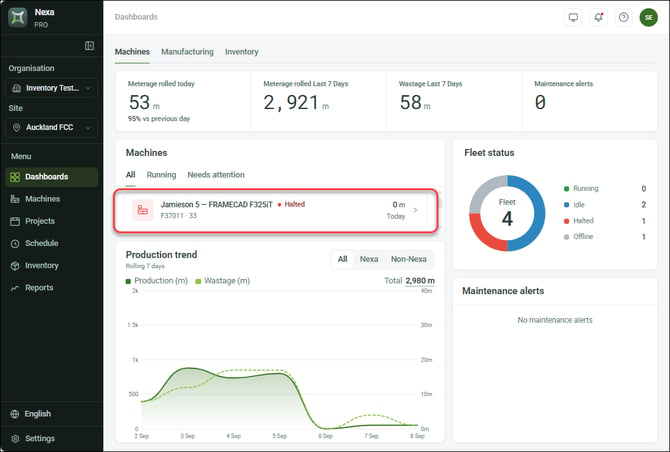
The Dashboards module opens to the Machines dashboard by default. The Machines dashboard shows production, wastage, and maintenance alert totals, production trends, real-time fleet status (i.e., if connected roll-formers are running, idle, halted or offline) and production trends by source (i.e., loaded on roll-formers from Nexa or loaded manually).
Click a tile under Machines to open a specific roll-former in the Machines module.
Machines module overview
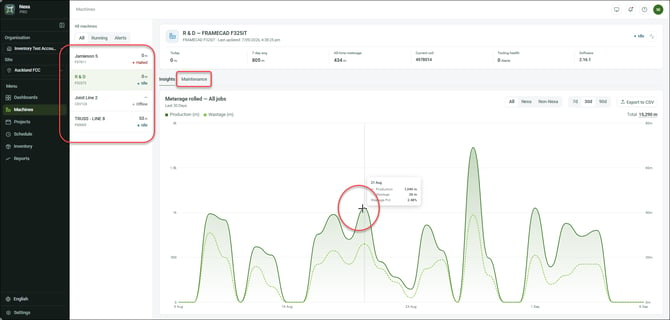
The Machines module shows machine status, control software version, production totals and trends, and tool health for a selected roll-former. The module opens to the Insights tab, by default, showing production trends.
Click the production trend for a running total at a specific point. Click Maintenance to view tool health data. Click a tile under All machines to view another roll-former.
Using common grid options
Modules display lists of items in grids, which include common functionality.
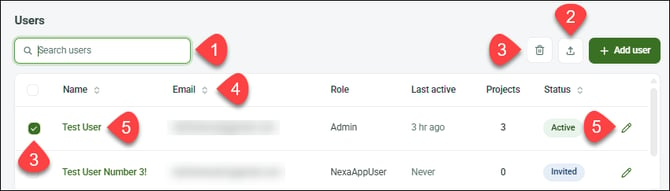
| 1 | Type to search for an item and/or filter items. |
| 2 | Click to export items as a CSV file. |
| 3 | Select item(s) and click the trash icon to delete items. |
| 4 | Click to sort items. |
| 5 | Click the item name or edit icon to update the item. |
Screen mode, notifications, getting help
Use the icons at the top right corner of any page to change screen mode, view notifications, or get help.
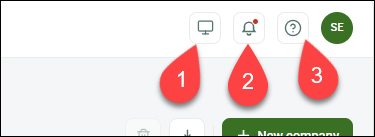
| 1 | Click for Light, Dark, or System defualt mode |
|
2 |
Click to view and clear notifications |
| 3 |
Click to get help from the FrameBot AI agent and search Knowledge Hub |