
It is critical for operators to do regular cleaning and maintenance before shutting down a machine for the day. This helps minimize the risk of machine and production quality issues.
Note – supplies needed: cloth, compressed air, non-soluble lubricant (e.g., WD-40, CRC)
Clean rollers and wheels
Steel shavings and lubricant can build up on rollers and wheels that come into contact with steel. This debris can cause production quality and machinery problems over time.
Operators should clean rollers and wheels before shutting down for the day to minimize the risk of production quality and machinery issues.
Spray non-water-soluble lubricant on surfaces and wipe down with a clean cloth.
Infeed encoder and top pressure wheel
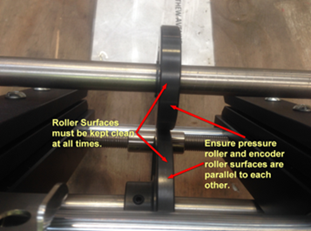
Spray and wipe the encoder wheel and shaft, and top pressure wheel and shaft.
Rollergang
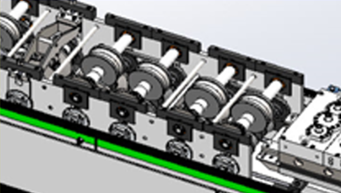
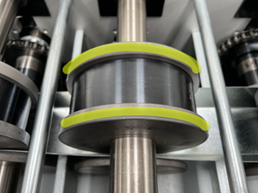
Spray and wipe all rollers, wheels, and shafts that you can reach.
Lipbox
Spray under the lipbox and onto the rollers.
Clean under the toolblock
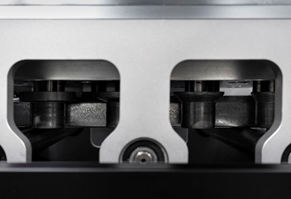
Use compressed air to push debris down the toolblock chute, then spray with lubricant.
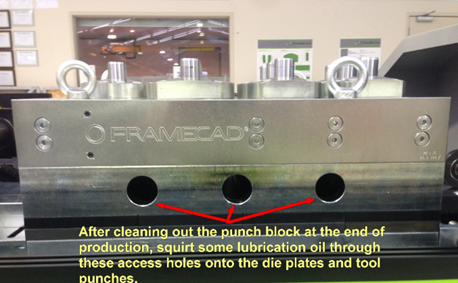
Clean around the shear and swage
Operators should clear steel dust and shavings from the shear and swage assembly every day. This minimizes the risk of debris causing production quality or machinery problems.
Clean the drip tray and waste chutes
Use compressed air (or reach between the rollergang rollers with a cloth) to push debris from the drip tray (1) to either the dimple chute (2) or toolblock chute (3).
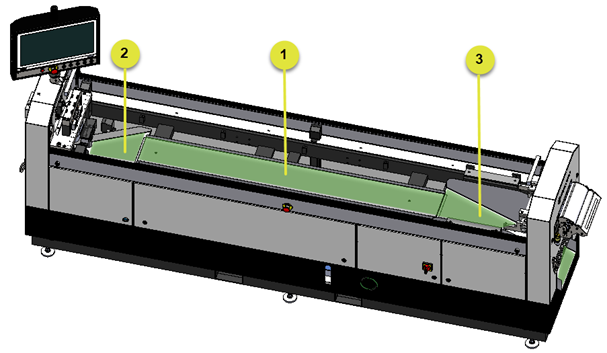
NOTE! Cleaning the tray and chutes does not have to be perfect. The idea is to prevent debris from building up and interfering with machine parts.
Sweep around machine and check for leaks
Sweep up steel shavings under and around the machine. Check under the roll-former for signs of hydraulic oil leaks. If you see signs of leaks, check the hydraulic system for the source.
TIP! A quick and easy way to check for leaks is to leave a section of cardboard under the roll-former and check it daily for signs of leaks.
End-of-day printer maintenance (cartridge printers)
For roll-formers with cartridge printers, operators should clean and store cartridges and clean printer heads at the end of each production day.
Note – supplies needed: lint-free cloth
1. Locate the printer heads (Outfeed end).
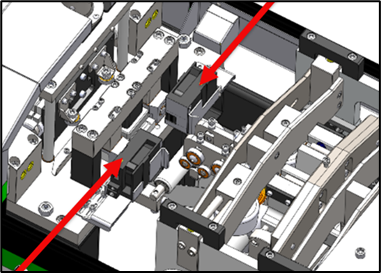
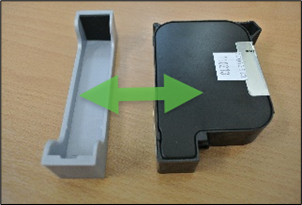
2. For each cartridge, lower the printer head locking lever, then lift the cartridge up and out.
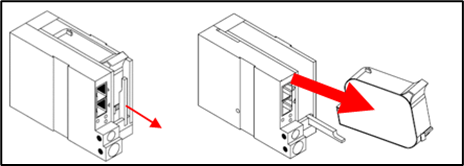
3. Gently wipe the ink side of the cartridge with the lint-free cloth.
4. Attach the protective cover and store the cartridge.
End-of-day printer maintenance (bottle printers)
Operators should purge and clean the printer heads at the end of each production day.
If shutting down for three or more days, operators should remove ink from tubes, then purge and clean the printer heads.
CAUTION! Ink, cleaner, and waste fluids in bottles are highly flammable and under pressure. Always wear nitrile gloves and safety glasses when handling fluids or bottles. Always consult supplier Material Safety Data Sheets before use.
Note – supplies required: clean rag, cleaner
Shutting down for the day/weekend
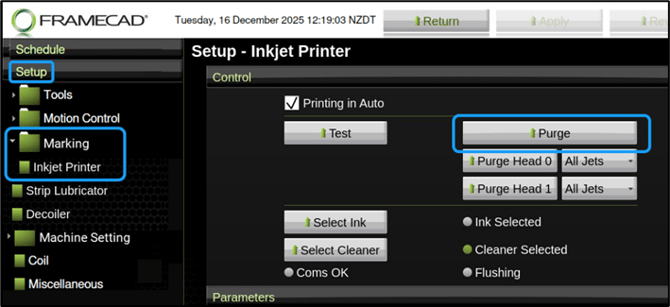
1. Purge printer heads with cleaner. In Factory2, tap Setup > Marking > Inkjet Printer. The Setup – Inkjet Printer window appears. Under Control, tap Select Cleaner. Tap Purge to pump cleaner through tubes; repeat until fluid runs clear.
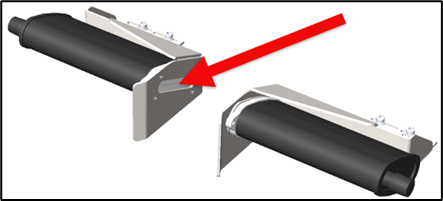
2. Clean the printer heads. Use a clean rag dipped in cleaner to remove dry or contaminated ink from the printer heads.
Shutting down for three or more days
Operators should purge ink tubes with cleaner if shutting down for three or more days. This will ensure that ink does not dry out and clog tubes leading to the printer heads.
NOTE! Have an extra, full bottle of cleaner ready and an extra bottle cap.
Replace ink bottle with cleaner bottle
With the Emergency Stop activated:
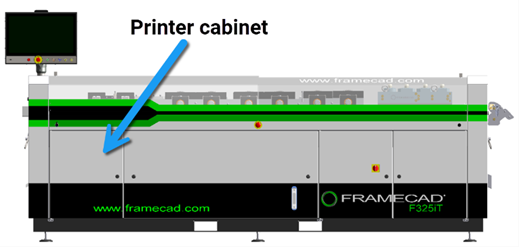
1. Locate and open the printer cabinet (Outfeed end, left side).
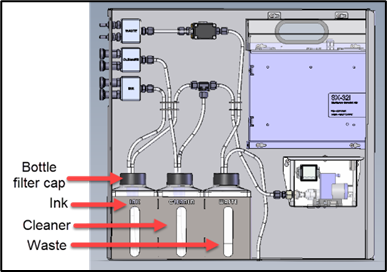
2. Slowly unscrew the ink bottle filter cap. Remove the ink bottle and replace with the extra cleaner bottle. Tighten bottle filter cap.
3. At the Operator touchscreen, reset the safety system.
Purge ink tubes with cleaner
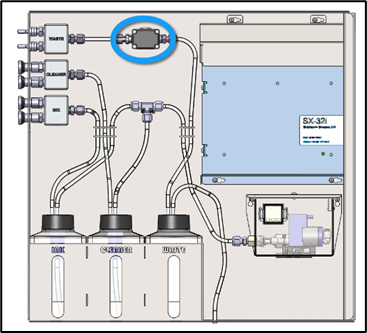
1. In the printer cabinet, press and hold the printer waste valve override button. This will draw fluid from the extra cleaner bottle through the ink tubes and into the waste bottle. Hold the override button until the fluid entering the waste bottle is clear.
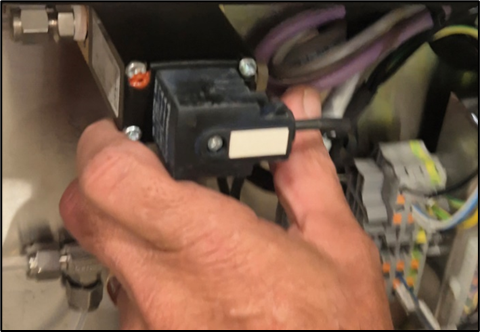
2. Remove and store the extra cleaner bottle, reinsert the ink bottle, and close the cabinet.
Purge and clean printer heads
1. In Factory2, tap Setup > Marking > Inkjet Printer. The Setup – Inkjet Printer window appears. Under Control, tap Select Cleaner. Tap Purge to pump cleaner through tubes; repeat until fluid runs clear.
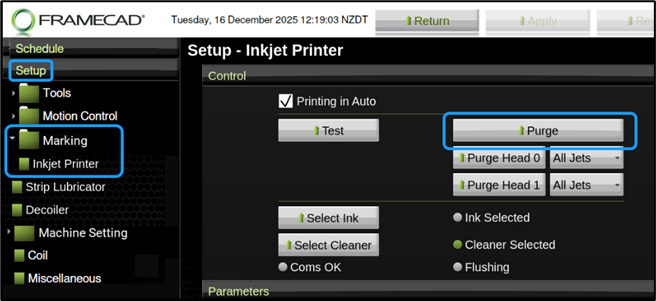
2. Clean the printer heads. Use a clean rag dipped in cleaner to remove dry or contaminated ink from the printer heads.
Logging out and shutting down
Operators can log out and power off after finishing the end-of-day cleaning and maintenance. In Factory2:
1. Tap Log out. The Login window appears. Tap Shutdown.
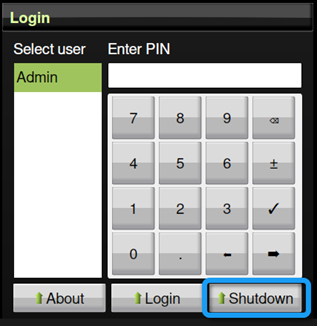
2. Factory2 will display read-only text as it shuts down.
3. When Factory2 stops displaying text, turn the Isolation switch OFF.