
Operators can start a job when the roll-former is loaded with the correct steel and set up to produce the correct profile for the job.
NOTE! A job may include sticks with both S and U profiles. This will require changing profiles during a job.
Operators run jobs in Automatic Mode (see About machine operating modes for info).
Changing production order (optional)
In Automatic Mode, the roll-former automatically produces each item in the order it appears, from top to bottom under Schedule in Factory2. To change the order:
1. Tap a plan, frame, or stick under Schedule. A window will appear. Tap Move to.
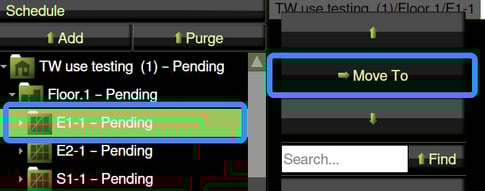
2. Tap an arrow to move it up or down the list. Or tap the place under Schedule to move the item.
3. Tap Move to again.
Starting the job
At the Operator touchscreen, press  (Automatic Mode button), if required. The button should be lit and solid. Then press
  (Start button).
NOTE! You must press Start twice if the hydraulic system is off. The hydraulic system turns off if the machine idles too long and after an emergency stop.
The roll-former will automatically move strip through the tool block, rollergang, and outfeed, producing each stick for each frame in the job file.
Viewing job progress
As the roll-former works, Factory2 shows the progress of each frame.
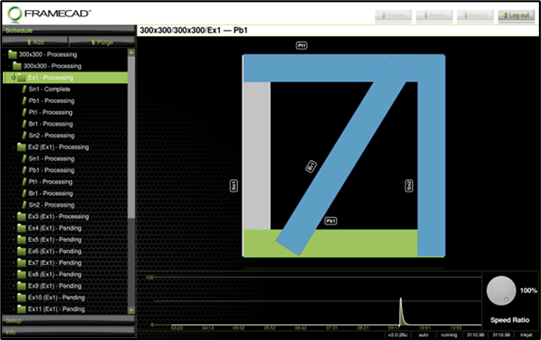
| Color | Indication |
| Clear | Sticks pending production |
| Blue | Sticks in production |
| Green | Next stick to be completed |
| Grey | Completed sticks |
Adjusting production speed
Factory2 shows the average production rate (steel processed/hour for past 8 hours of Automatic production) at the bottom of the Main panel. Operators can change the current production rate by turning the Speed Ratio dial.

NOTE! Speed is a percentage of the feed-rate set for the roll-former. Operators can only adjust speed ratio when the machine is in Automatic mode.
Pausing a job in production
Operators may need to pause a job for different reasons, such as to move completed sticks from the run-out table, change profile shape, feed steel into the roll-former, or fix a production issue.
When in Automatic mode, you can manually pause a job to stop the machine:
- immediately, scrapping the current stick,
- immediately, saving the current stick, or
- after the next stick is completed.
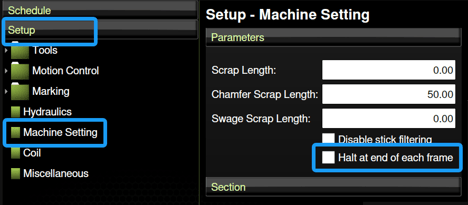
TIP! You can set a machine to automatically pause after each completed frame. In Factory2, tap Setup > Machine Setting > Halt at end of each frame.
NOTE! These methods are only for when a machine is in Automatic mode.
Pausing production immediately (scrapping current sticks)
Use this method when performing a task that will render an in-progress stick unusable, such as when feeding new steel into the roll-former. On the Operator touchscreen unit:
1. Press  (Pause button). The machine will complete any tool action in progress but will not complete the current stick(s).
2. Press  (Software Reset button). The current stick(s) will revert to pending status. The machine will be in Manual mode (Manual button will be lit). Scrap current steel.
3. Perform task. Feed new steel into roll-former, if required. When ready to resume, press  +
+  (Automatic Mode button + Start button) when ready to resume.
The roll former will automatically re-do the scrapped stick.
Pausing production immediately (saving current sticks)
On the Operator touchscreen unit:
1. Press (Pause button). The machine will complete any tool action in progress but will not complete the current stick(s).
2. Press Pause again to resume the job with the current stick.
Pausing production after next stick (Controlled Stop)
A controlled stop allows the machine to finish the next stick before pausing production. On the Operator touchscreen:
1. Press (Start button). The button will flash. The machine will complete the current stick, then stop.
2. Press Start again. The job will resume, starting with the next stick.
Deleting items, and repeating or purging jobs
Factory2 shows the status of a job in Schedule as Pending (job is loaded, awaiting production), Processing (job is in production), or Completed (job is done).
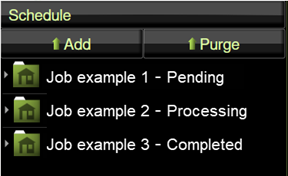
You can delete an item from Schedule at any time by tapping it, then tapping Delete in the pop-up window.
You can repeat a job by tapping a job with Completed status, then tapping Reschedule in the pop-up window.
You can remove all jobs with Completed status from Schedule by tapping Purge.