
Shear blades will require periodic replacement, depending on frequency of production and operational conditions. Operators must replace the shear blade as needed.
Tip! Signs that a blade needs replacement include incomplete shear cuts and a visibly blunted blade.
Note – tools required: 4mm hex key, 6mm hex key, 8mm hex key, 10mm hex key, cabinet key, socket set, replacement blade
 WARNING! Remove steel from machine and turn the isolation switch Off before proceeding.
Access the shear assembly
Open the sliding guard (Outfeed end), then:
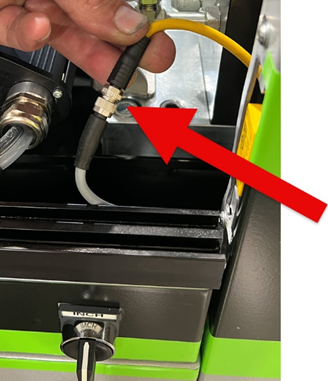
1. Locate and disconnect the sliding guard safety switch cable (Outfeed end, right side, inside chassis).
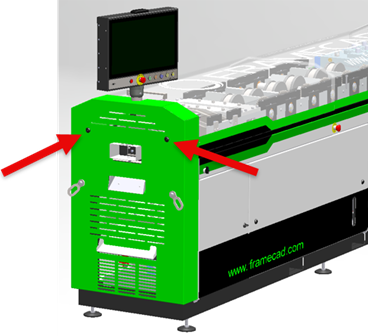
2. Use the cabinet key to unlock the Outfeed end cover. Remove cover.
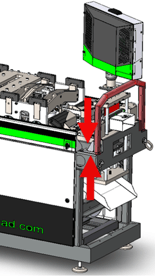
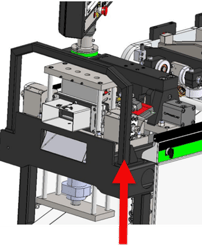
3. Swing the Operator touchscreen support frame out of the way. The support frame has two mounting bolts on either side. Use the 10mm hex key to remove both right-side mounting bolts and the bottom left-side mounting bolt. Swing aside the touchscreen support frame.
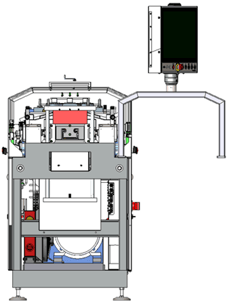
Replace the shear blade and insert in assembly
CAUTION! Take extreme care when handling the shear top plate and shear blades.
With the Outfeed end cover removed and the touchscreen support out of the way:
1. Use the 10mm hex key to loosen the four shear assembly clamp bolts (Outfeed end). Do not remove the clamp bolts yet.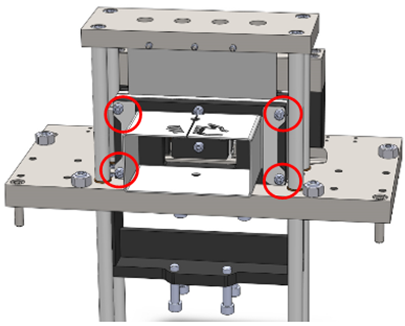
2. Use the 10mm hex key to remove the four top shear plate bolts. Note: the shear blade is secured to the plate with retaining bolt. Lift the top shear plate to remove the plate and blade.
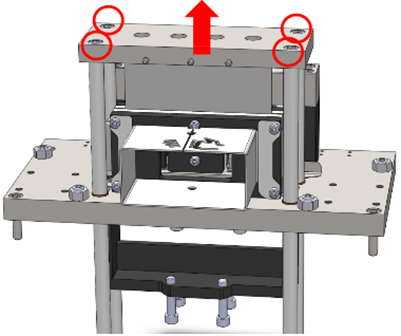
3. Move the plate and blade to a workbench or flat table. Use the 8mm hex key to remove the shear blade retaining bolts. Insert a new blade of the correct size and shape, then tighten the retaining bolts.
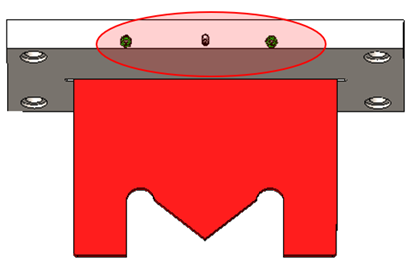
4. Insert the top plate/new blad in the shear assembly, insert and tighten the four top plate bolts, and tighten the shear assembly clamp bolts.
5. Swing the Operator touchscreen back in place, insert and tight the mounting bolts, close the Outfeed end cover, and reconnect the sliding guard safety switch cable.Reset the tool count
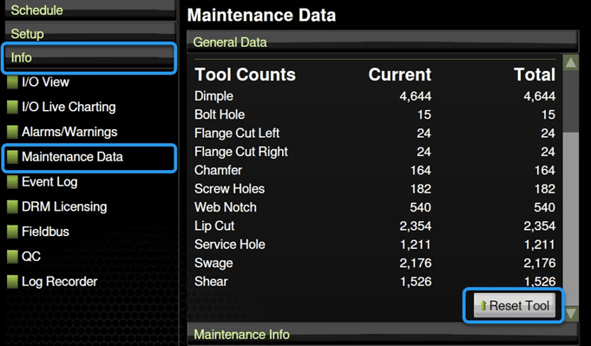
Operators must reset the tool count in Factory2 whenever a tool is replaced. The tool count is the number of times the tool has been operated since the last reset. In Factory2:
1. Tap Info > Maintenance data. The Maintenance Data window appears. Under General Data, scroll down and tap Reset Tool.
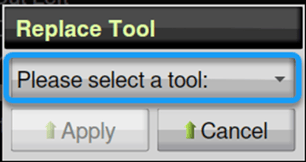
The Current number for the tool will reset to 0.