
The fixed dimple die and punch works in combination with the moving dimple die to produce a dimpled screw hole on a flange. This is the most frequently used tool on the roll-former. Operators will likely replace dimple punches more often than any other tool.
TIP! FRAMECAD recommends organizations keep at least two spare dimple punches in stock at all times.
Note – tools required: 2.5mm hex key, 6mm hex key, 10mm hex key, replacement dimple die/punch
 WARNING! Remove steel from machine and turn the isolation switch Off before proceeding.
Remove current punch and insert new punch
There is one dimple punch on each side of the dimple assembly. To replace a punch, open the sliding guard (Outfeed end), then:
1. Locate the dimple assembly between the pinch rollers and the flange overform assembly.
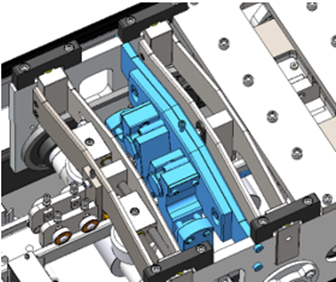
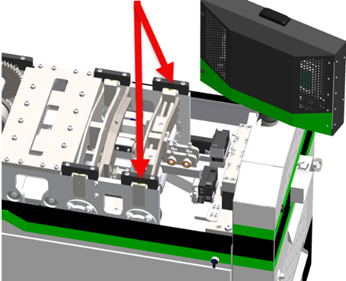
3. Use the 2.5mm hex key to loosen the punch retaining screw, lever the current punch so that it drops of the housing, then carefully insert the replacement punch.
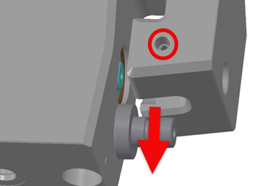
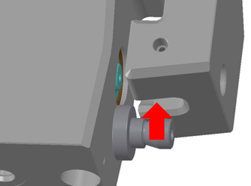
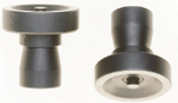
4. Tighten the punch retaining screw.
5. Return the overform assembly to its place and tighten the cap screws.
Reset the tool count
Operators must reset the tool count in Factory2 whenever a tool is replaced. The tool count is the number of times the tool has been operated since the last reset. In Factory2:
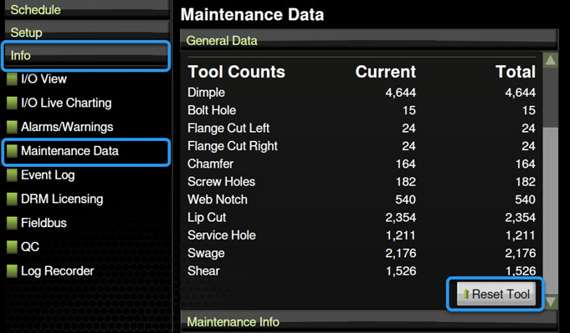
1. Tap Info > Maintenance data. The Maintenance Data window appears. Under General Data, scroll down and tap Reset Tool.
2. The Replace Tool window appears. Tap Please select a tool, select the dimple you replaced, then tap apply.
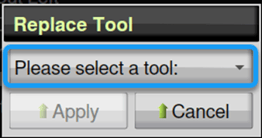
The Current number for the tool will reset to 0.