
Nexa displays projects in a grid in the Projects page. You'll see the Projects grid under some general project stats.
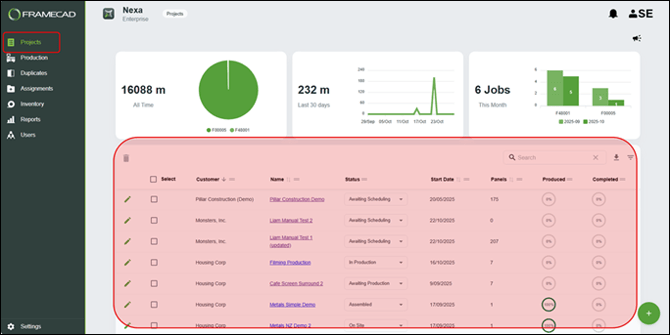
Use the Projects grid to locate and work on a specific project. The grid includes search, sort, and filter features to help when your list gets long.

Viewing a project
Click the name of a project in the Project grid to view it or work on it.

The project's main screen opens with headline stats and a 3D model based on its design files), plus tabs for project information and timeline, managing files, and working on plans, stacks, panels, sticks, and jobs.
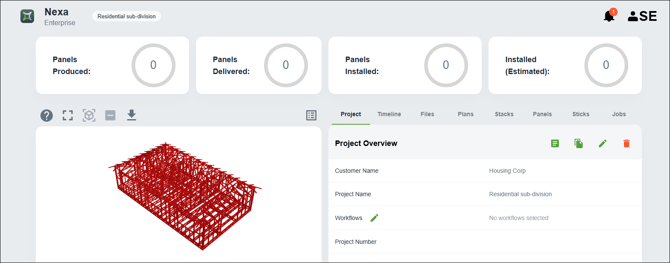
You can update information or delete the project in the Project tab. Click the pencil icon to update project information as needed. The process is the same as described below. Click the trash icon to delete the project.
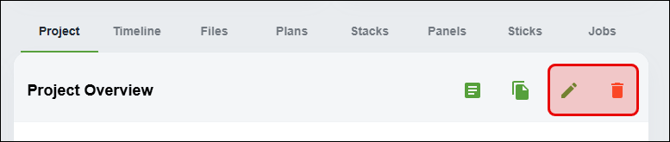
Updating project information in the Project grid
You can update the information a user entered when they created a project. Click the pencil icon for a project in the Product grid to update its project information.

The first project details page appears. Update information as needed.
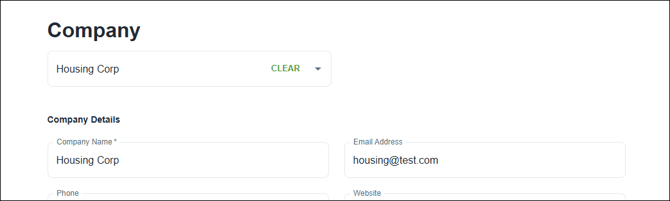
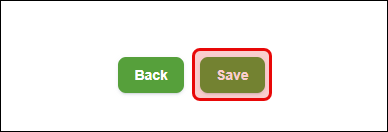
Click Next and continue updating project information as needed on the next page. When you're finished, click Save at the bottom of the second page to make your changes permanent.
Deleting one or more projects in the Project grid
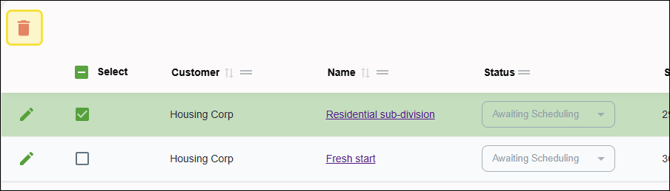
You can delete as many projects as you need to via the projects grid. Click the tick box for each project to be deleted. Use the tick box at the top of the column to select all. Then click the trash icon.
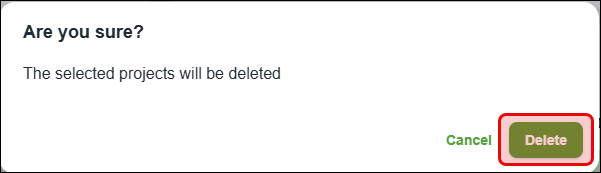
A confirmation window appears. Click Delete to remove the selected projects.
Restoring deleted projects
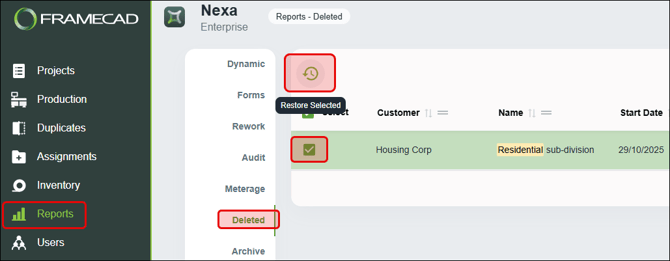
Admin Users with a paid subscription can restore a deleted project in Nexa. Click Deleted in the Reports page to view a list of deleted projects. Select one or more project(s) then click the Restore Selected icon.
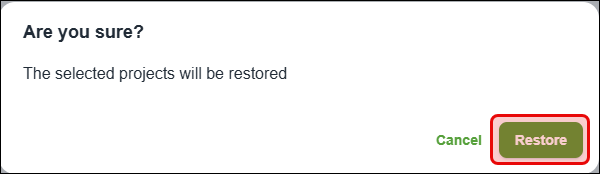
A confirmation window appears. Click Restore.
Now you can find the restored project(s) again in the Projects page.