
Restoring a Steelwise file to its last autosaved version
Steelwise automatically saves your work every 15 minutes after your first manual save. To restore your file to the most recent autosaved version:
| 1. Type AUTORESTORE and press Enter. File Explorer opens to your Temp folder. |
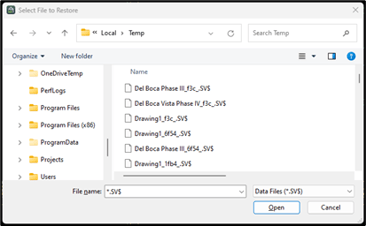 |
| 2. Find the relevant .SV$ file. (Type *.SV$ in the File name filed to filter). |
| 3. Double-click your file or click Open. |
Restoring the Command bar
Use any of these options if you do not see the Command bar:
| • Click the Status Bar (at the bottom of the screen). |
| • Press ctrl + 9. |
| • Type COMMANDLINE, press Enter, then type S and press Enter. |
| • Right click the Menu bar and select Command Bar. |
Restoring the Steelwise menu or Steelwise command functionality
The Steelwise menu in the Menu bar or Steelwise-specific command aliases (e.g., BSET, PPD, etc.) can occasionally fail to load.

If you do not see the Steelwise menu, or if a Steelwise command does not work:
• Type DO_ONCE and press Enter.
Restoring a missing dialog
In rare instances, Steelwise prompts you to type a file path in the Command line (instead of using a dialog) to complete certain commands (e.g., SAVEAS, OPEN). This can occur when starting Steelwise after an error or crash at the last shutdown.
To restore a missing dialog, go to another open file or start a new file, then:
| 1. Type FILEDIA and press Enter. |
| 2. Type On or 1 when prompted to enter a new value. |
| 3. Press Enter. |
Restoring ELEVATIONLINE, SECTIONLINE or SMART_PANEL functionality
AECObjects must be on to use the ELEVATIONLINE, SECTIONLINE, or SC (SMART_PANEL) commands. Steelwise displays a message in the Command line when you run these commands with AECObjects off.


| To turn AECObjects on: |
| 1. Type AECOBJECTS and press Enter. |
| 2. Type On when prompted. |
| 3. Save your file, then exit and restart Steelwise. |
Showing new settings after a data file update
Changed settings may not be immediately apparent after a data file has been updated. To see changes in effect:
• At a System Name field, select a different data file, then re-select the original data file.
• If required, at a Current Model or Model Name field, select a different model, then re-select the original model.
Fixing an apparent zoom issue with LP and TUP commands
Steelwise may appear to zoom on an empty screen when you run the SHOW_LOAD (LP) or TRUSS_UPLIFT (TUP) command. This usually is due to the accidental placement of an item far outside its original border. To zoom out and look for items placed far outside borders:
• Double-click the scroll wheel or
• Type ZOOM, press Enter, then type E (for Extents) and press Enter.