Customers running FRAMECAD® machine software on a machine that is not connected to the Internet must manually update their license. This requires downloading the license from Communities and uploading or entering it into the machine.
NOTE! Alerts appear in a machine's touchscreen and in Communities when an offline machine license will expire within 14 days.
Download the license for an offline machine from Communities
Log in to Communities, then:
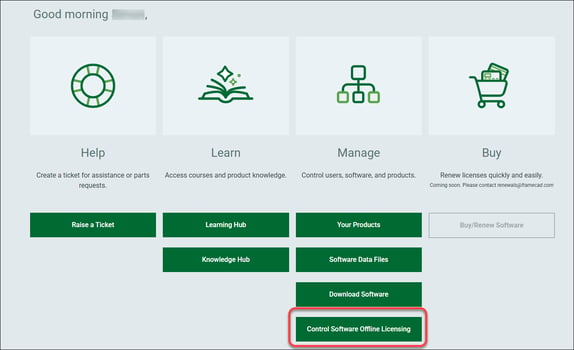
1. Click Control Software Offline Licensing.
2. Under Retrieve Offline License Key, select the machine from the dropdown list and click Retrieve Softkey.
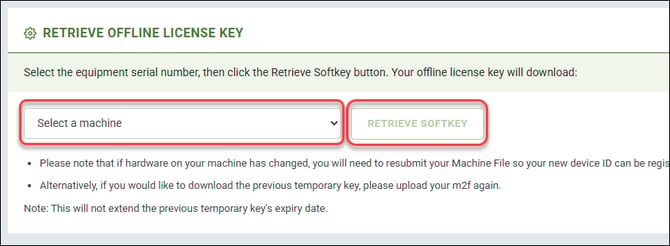
3. Communities downloads the .f2m license file for the selected machine.
You can now save the .f2m file to a thumb drive to upload to your machine or open the .f2m file and record its 24-digit license code for manual entry in your machine's touchscreen.
Upload the license to the offline machine
With the machine powered up:
1. Insert the thumb drive with the .f2m file downloaded from Communities or have the 24-digit code ready for manual entry.
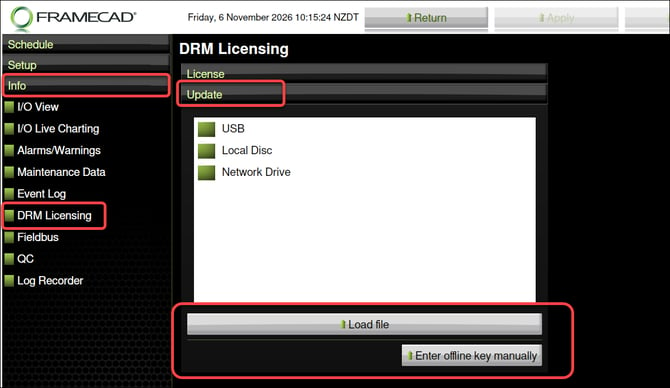
2. In the machine touchscreen tap Info > DRM Licensing > Update. Then tap Load file to upload from the thumb drive or tap Enter offline key manually to enter the license by hand.