
Use the Production page to assign a project to a specific machine. Once assigned, operators can load and run it as a production job via Factory2.
The Production page shows all uploaded (created) projects, each connected roll-former, unassigned projects, and production status.
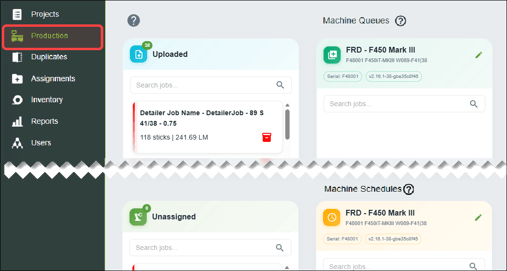
Queuing a project for production
Drag and drop a project to a roll-former under Machine Queues.
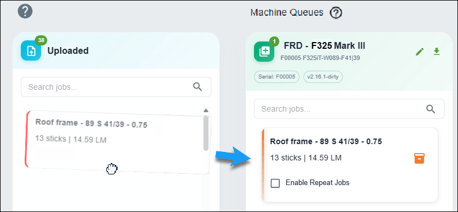
Operators can immediately load and run the project if the machine is connected to the Internet.
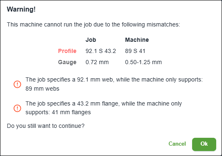
Nexa warns you if the machine is not set up for the required profile or steel. Click Ok to queue the project anyway. Operators may need to change the roll-former's current steel or profile configuration to run the job.
To queue a project when a machine has lost Internet connection, click the Download Next Job icon ( ). This allows you to save the job at the top of a queue to a thumb drive for operators to load via the roll-former's USB port.
Scheduling a project for production
A project can be scheduled for the next calendar day or later. Drag and drop a project to a roll-former under Machine Schedules. Enter a date in the Scheduled field.
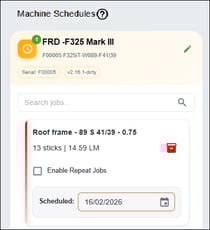
Operators will be able to load and run the project on the scheduled date.
Setting a project as a repeat production job
You can set a project for repeat production. This eliminates the need to create separate projects when running multiple production jobs of an identical design.
Repeat production is available to roll-formers running Factory2 version 2.16.1 or higher. Read how to find your machine's version number and OS via the Operator Touchscreen.
Drag and drop to queue or schedule a project, click Enable Repeat Jobs, and set the number of repeats.
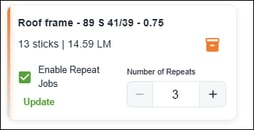
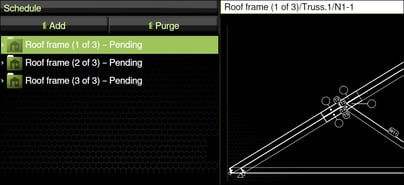
Now when operators load the project, Factory2 creates a separate job for each repeat.
Production status color key
Each project has an archive button ( ) and/or border that changes color to indicate its status.
| This status... | Means the project is... | |
| Awaiting scheduling | Not assigned to a roll-former | |
| Awaiting production | Assigned to, but not loaded on a roll-former | |
| Awaiting rework | Waiting for stick or other element to be redone | |
| Sent to machine | Assigned to and loaded on roll-former, but production is pending | |
| Manually exported | Assigned to and saved (for loading on roll-former via USB) | |
| In production | Project assigned to roll-former, and job in production |
Roll-formers update Nexa with production statuses every five minutes.
Updating a scheduled or queued project
Click the relevant item in a project to change its repeats or scheduled date. Drag and drop the project to unassign it from a machine.
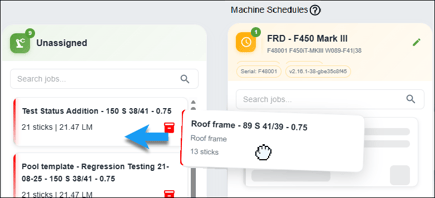
You can adjust repeats or scheduled date or unassign a project until it appears greyed out.
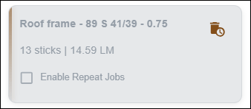
A project is greyed out when an operator has loaded it onto a machine or when it is downloaded from Nexa for loading onto a machine via USB. To stop a project, click Unschedule job ( ).
).
Only click Unschedule job if operators have not created any sticks for it. Stopping and rescheduling a job in production may result in duplicate sticks and status tracking errors.
Overview of loading a Nexa project onto a machine
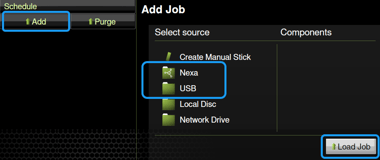
After you've queued, scheduled, or downloaded a project, operators add it to a machine as a job by tapping Add in Factory2, selecting the project in Nexa or USB, then tapping Load Job.
Viewing sticks that were deleted from a job via Factory2
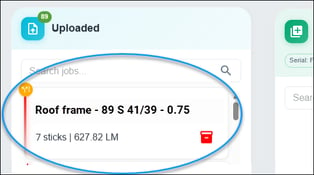
Nexa automatically shows when an operator deletes sticks from a job via Factory2. Nexa "splits" the deleted sticks into a separate tile under Uploaded and denoted by the split ( ) icon. The tile includes the original job name and the number of sticks that were deleted.
NOTE! Nexa does not show sticks that were deleted from a job that is set to repeat.