
Users with a paid subscription have two options for creating a template. You can create a new project and save it as a template. Or you can create a new template. This article covers how to create a new template and how to create a project from an existing template.
Templates save time, eliminate repetitive data entry, and reduce risk of error when you want to create many related projects based on similar designs. For example, you can use a template for a residential development with multiple houses with similar designs.
Creating a new template
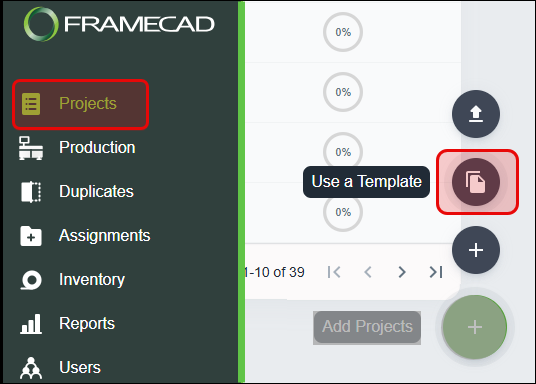
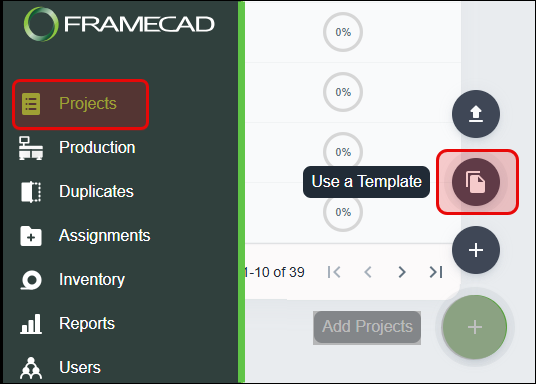
Click the plus sign (Add Projects) in the bottom right corner of the projects page, then select Use a Template.
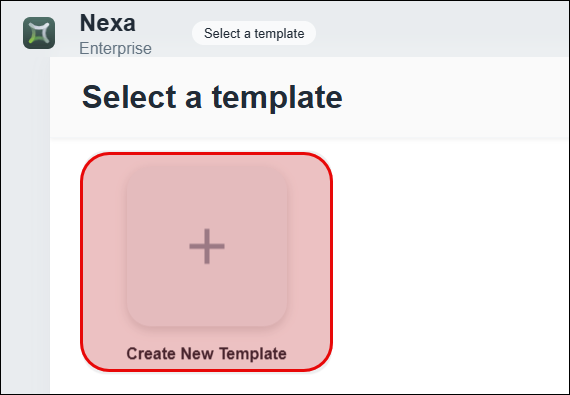
The Select a template screen appears. Click Create New Template.
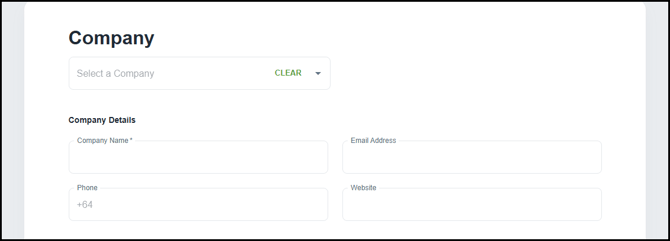
A New Template page appears. Select a past customer's company name, or enter a new customer's company name and country, plus any optional company contact details, address details, or notes.
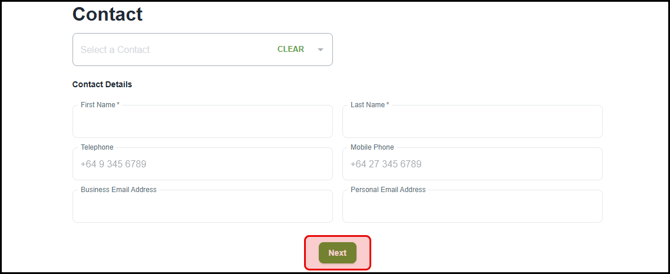
Scroll down. You can select a contact name if the company is a past customer or enter the first and last name of a new contact, plus any optional details about the contact. Click Next.
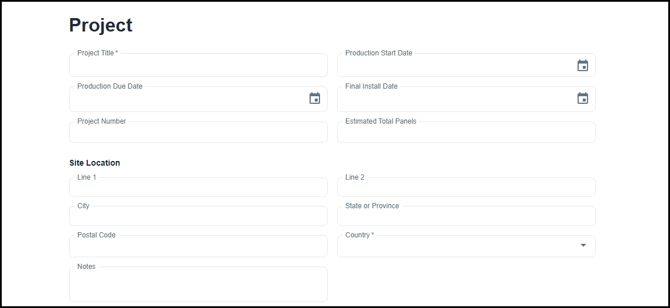
A second page appears. Enter a project title and select a country, then add any optional project and site location details and notes, as needed.
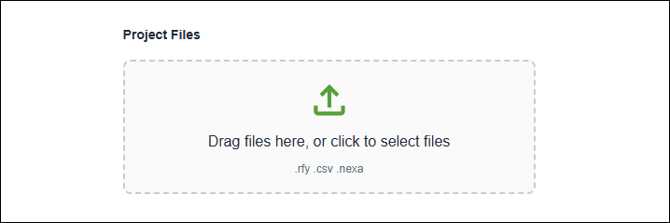
Next, use the Project Files section to upload the .rfy, .csv, or .nexa design files required for the project.
You can add design files any time after you create a project by uploading it to the project in Nexa or by connecting to Nexa from FRAMECAD Steelwise or FRAMECAD Detailer.
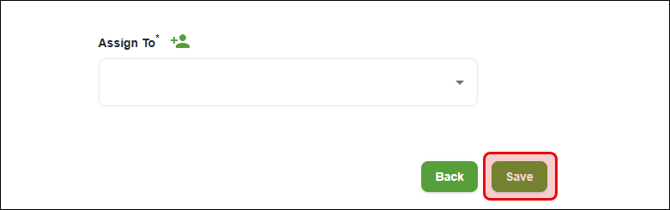
Finally, assign the project to a Nexa Admin user. Then click Save.
Assigning a workflow
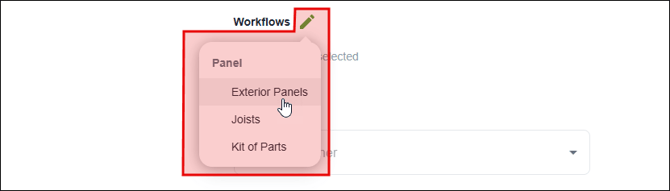
Users with a Nexa Enterprise subscription can assign any workflows created for their account to a project template. Workflows allow Admin users to track the progress of stacks and panels through a project's stages, according to the project's specific operational needs.
Click the Workflows edit icon, select workflow(s) to use, then save the template.
Creating one or more new projects from a template
Users with a paid subscription can create one or more new projects from a template. To use a template, click Add Projects in the bottom right corner of the Projects page, then select Use A Template.
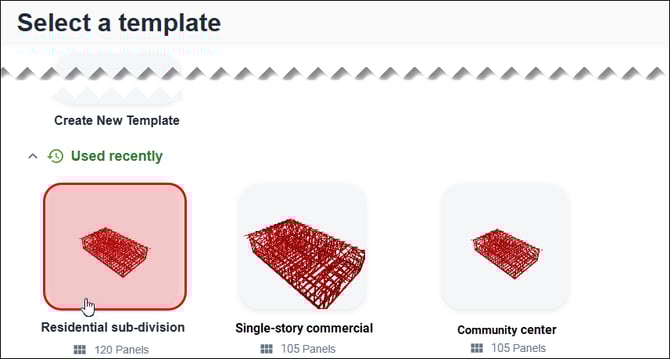
Scroll down and click a template.
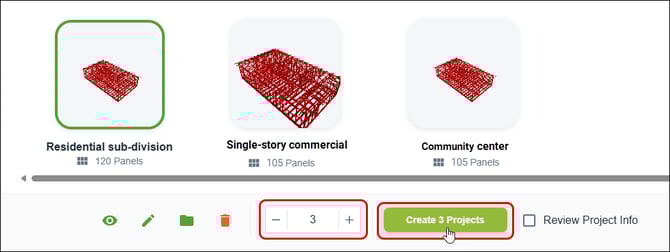
Set the number of projects you want to create.
Select Review Project Info to change information that was saved when the template was created. This is useful for updating the customer, company, contact, and site location to match the specific project(s) you are creating from the selected template.
Click the Create Projects button.
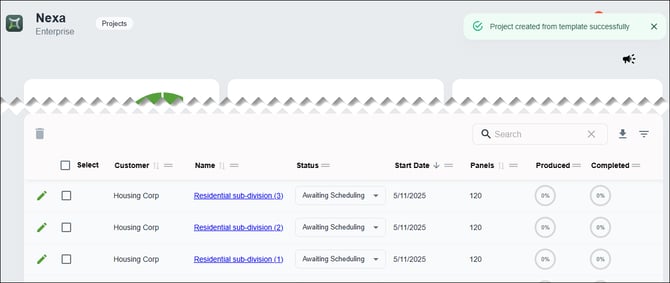
The Projects page appears. You will see the project(s) you just created at the top of the Projects grid.
Viewing an existing project template
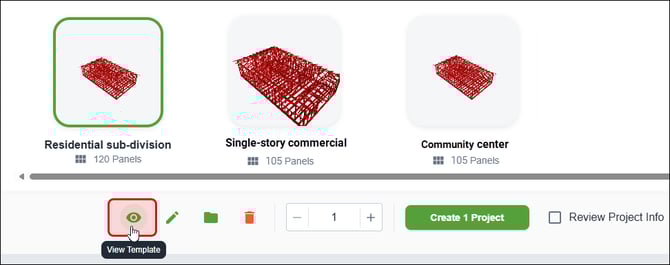
You can view the 3D model, plans, templates, stacks, panels and other aspects of a template before you create a project from that template. Select a project template, then click View Template.
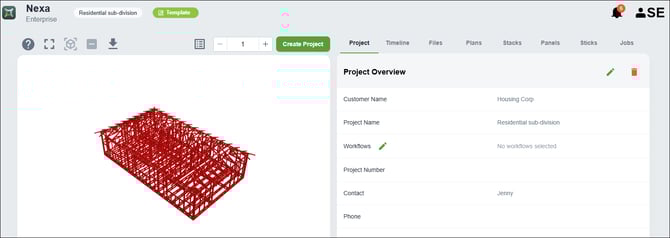
The project template page appears. Use this page to do things like review project plan, add new production files, etc., and to create projects based on the template.
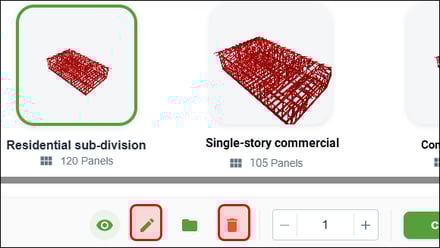
The Select a template page includes controls for viewing and deleting a project template, creating a template folder, and editing template details.
Updating project template info and deleting a template
Select a template, then click the pencil icon to change information that was saved when the template was created. Click the trash icon to permanently delete the template.
Adding a template to a new or existing folder
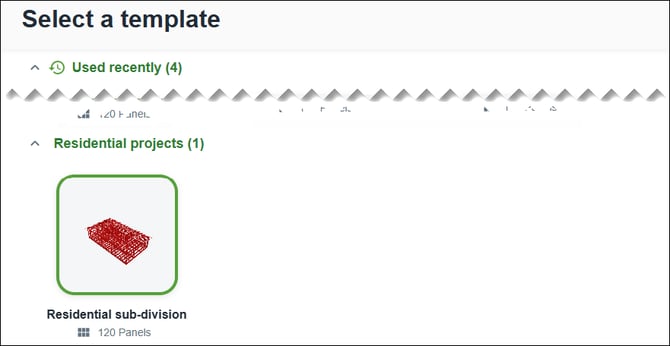
By default, Nexa organizes templates in the Used recently or the Other templates folder. You can add a template to a custom folder to keep templates organized as you add templates over time.
Select a template, then click the folder icon.
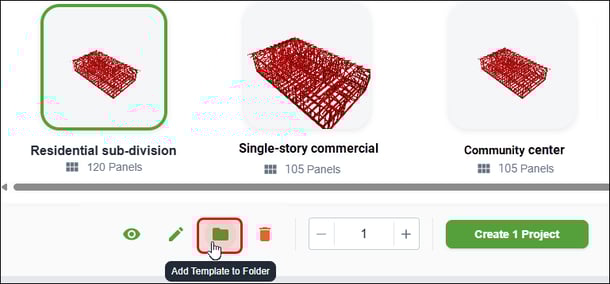
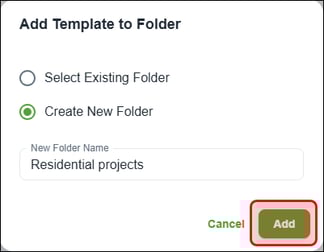
In the Add Template to Folder dialog, click Create New Folder, and give the folder a name, or click Select Existing Folder to add the template to a folder that you or another user in your organization has already created.
You can now find the template in the custom folder.
You can only delete a custom folder by deleting all templates that have been added to that folder.