
Users with a Nexa Podium or Nexa Enterprise subscription can create digital versions of their quality control (QC) forms for incorporation in their Nexa projects.
This allows your team to digitally record QC data when they work on a project in Nexa, eliminating paper-based records, reducing errors, and integrating streamlined QC processes with your project management workflows.
About how digitization works and using PDFs
You digitize a QC form by uploading a PDF version of it to Nexa, then placing interactive elements (text fields, date fields, checkboxes or radio buttons) on the form wherever you want Nexa users to enter data or a response when they fill out the form.
You can only create digital forms in Nexa from PDFs. If your QC form is a Microsoft Word (.doc) file, save it as a PDF first. Refer to Microsoft support for how to save a .doc as a PDF (opens a new window).
How to create a new digital form template
Click Settings at the bottom left of the Nexa screen. In the Settings page, click the Forms tab, then under Design New Template, drag and drop or select a PDF to digitize.

The PDF appears (this is the basis of the form you are digitizing) with its name, parent type, and the interactive elements you will use to digitize the template.

Click Template Name to change the name, if required, then select the parent type.

- Template Name: This is the name that users will see when they click the Start QC Forms icon (
 ) in a section of the Projects page relevant to the template's Parent Type. By default, Nexa uses the name of the PDF for the Template Name.
 - Parent Type: This determines if the QC form should be used with a specific design item, for a production job, or for a project as a whole. Select Stick, Panel, Stack, Plan, Production Job, or Project.
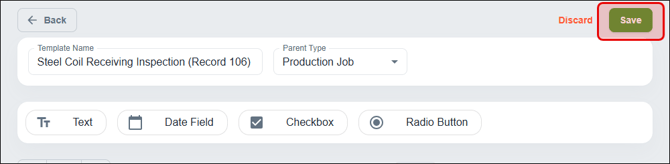
Now add the interactive elements you require. Click Save as soon as possible.
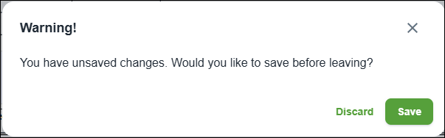
A warning appears if you click on another page or on your browser's back button while there are unsaved changes in a form template.
Adding interactive Text, Date Field, Checkbox and Radio Button elements to a form template
Add interactive elements to your form template wherever you want users to enter data or to enter a response when they fill out the form.
First, select an element type by clicking Text, Date Field, Checkbox, or Radio Button. The selected element type will appear shaded green.

Then click the area of the form template where you want to place the selected element type.

Use the zoom, page, and scroll controls to help find where you want to place an element.

Click on any placed element to resize it with your mouse or to move it using your mouse or using your keyboard arrow keys. This is especially useful for ensuring a clean design and keeping interactive elements aligned with the related sections of your QC form.

About Checkbox and Radio Button elements
- Add checkboxes where users can select any number of items.
- Add radio buttons where users must select one out of a group of items. See below for information on setting Radio Button Groups.
Adjusting field, checkbox, and radio button properties
You can adjust some settings in the Properties window. The Properties window appears to the right of the form template when you click an element in the template. Specific properties differ depending on the element type.

- Size: Change the height, width, or radius of the selected element, in pixels (px).
- Make A Copy: Create a duplicate of the selected element.
- Remove: Delete the selected element.
- Required (for Text, Date, and Radio Button elements): Make the selected element mandatory when a user fills out the form.
- Font Size (for Text and Date elements): Change the font size of the data that a user enters when they fill out the form to anywhere from 8px to 32px. (The default size is 9px.)
- Multiline (for Text elements): Enable text to wrap around when a user enters data in the element.
- Radio Button Group: Assign the selected radio button to a specific group. Because radio buttons are designed for a user to select one of multiple options, the Radio Button Group allows you to define which radio buttons belong to which group of options.
Remember to click Save to update your form template with changes.
How to edit an existing form template
In the Settings page, click the Forms tab, then under Edit Existing Template, click a template.
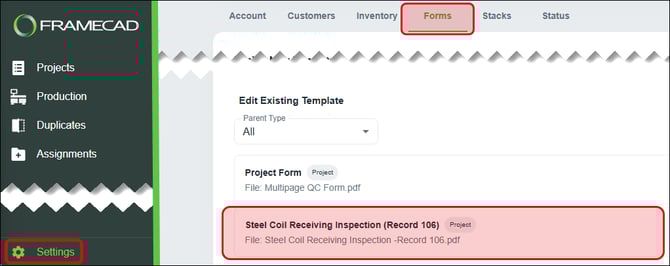
Now use the template to add, remove, or reposition elements, as required. Remember to save your changes.
How to locate and fill out a form in a project
Users can fill out a QC form in the Projects page after a template has been created.
FRAMECAD recommends opening Nexa in a tablet if you want to complete a QC form on the move.
Open a project by clicking its name in the Projects page grid.

You can find a form in the Project, Plans, Stacks, Panels, Sticks, or Jobs tab. To fill out a specific form, click the Start QC Forms icon () in the relevant tab, then select the form.

To find a form in the Stacks, Panels, or Jobs tab, click an item name in the respective grid.
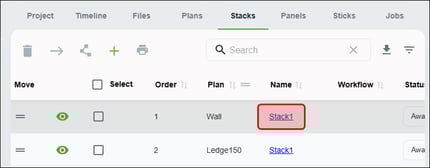
Then click the Start QC Forms icon or button and select the form.
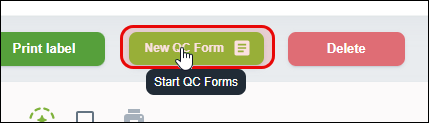
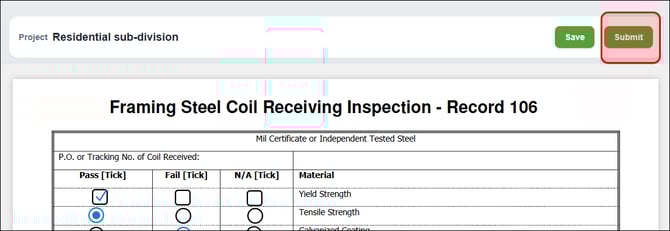
After clicking Start QC Forms, enter data or responses. Click Save to save your progress or click Submit to complete the form.
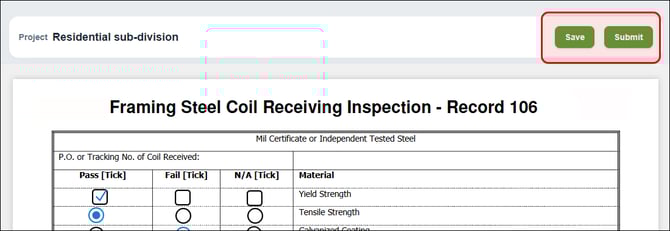
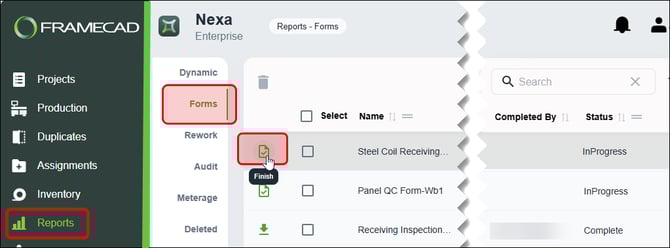
If you save without completing a form, and navigate to another page, you must use the Reports page to finish the form. The form will appear with an InProgress status.
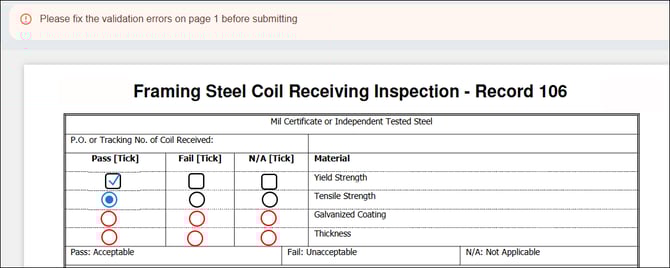
If you click Submit without filling in any required fields, an error message prompts you to fill in the required data. Required fields with missing data will appear colored red.
Finishing an in-progress form and downloading completed forms
The Forms section of the Reports page lists all in-progress and completed forms. The list shows information about each form, including links to its related project and item, its status, and which user finished the form if its status is Complete.
To find in-progress and completed forms, click Reports, then click Forms.
To complete a form, click the Finish icon for a form with InProgress status.
Enter the required data and click Submit.
To download a completed form, click the Download icon for a from with Complete status.
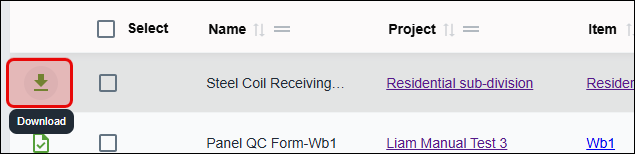
The form will be saved as a PDF in the local Downloads folder.