
As with any CAD software, Steelwise puts heavy demand on PC processing, memory, graphics, and storage. You can take steps to avoid lag times and system crashes that arise when running Steelwise on a resource-constrained PC.
Work on files locally
Do not work directly on a job file stored on a network drive. This can cause slow performance, autosave failures, file corruption, and increased risk of crashes due to network latency and instability. Work on a job file locally, then sync or store a copy to a network drive when finished.
Use fewer entity snaps
Working with too many active entity snaps can slow down an underpowered system. Only select the entity snaps you need at any given time. FRAMECAD recommends you select only Endpoint, Midpoint, Perpendicular, and Intersection for basic detailing.
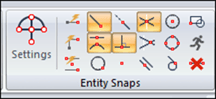
NOTE! Steelwise automatically changes entity snaps when you use certain commands.
Turn off live tooling until required
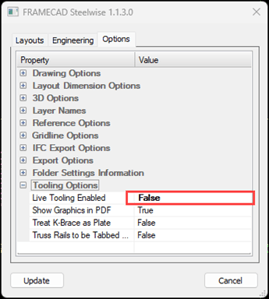
Live tooling (i.e., rendering dimples, notches, punches, etc., in detail sheets) can slow an under-resourced system as you work on a job file. Only enable live tooling when it is time to finalize or review tooling details. To turn live tooling off:
| 1. Type BSET and press Enter. A dialog appears. |
| 2. In the Options tab, under Tooling Options, select False for Live Tooling Enabled. |
 |
| 3. Click Update |
Select True to turn live tooling on later when required.
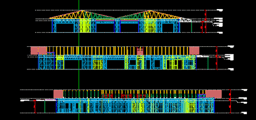
Use elevation and section views only as needed
Elevation and section views can increase a job file’s size. Create elevation and section views only as needed and remove them from both the Layouts and Model spaces when you are finished using them.
Remove imported drawings and referenced files
Remove any imported architect’s plans and drawings from your job file after you’ve finished using them to create layouts.
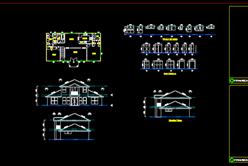
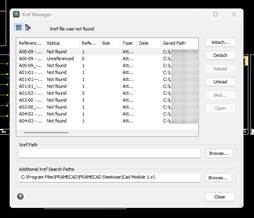
Detach any referenced files. Type XREF and use the dialog to detach selected files.
Strip data from entities in a layout before reusing
Always strip data from entities in a layout before copying to another border to use for set-out purposes. This prevents issues related to duplicated data.
For example, a detailer may copy a second-floor layout with coded wall panels to begin detailing the second-floor joist layout. If the data has not been stripped from the entities in the wall layout, the file size increases and the detailer risks generating second-floor wall panel details twice.
| To remove data from entities in a layout: |
| 1. Type STRIP and press Enter. |
| 2. Select entities to strip and press Enter. |