
FRAMECAD® customers with an Assurance Plus service plan can use the ServiceMax Engage app to request help and start a chat with FRAMECAD technical support. The Engage app is designed to reduce the time it takes to resolve an issue with a FRAMECAD product.
How to Install ServiceMax Engage
You can install ServiceMax Engage on an iOS or Android device.
You must receive an Engage Welcome email and have access to Communities before you can use Engage. Please contact your Customer Success Coordinator if you are an Assurance Plus customer have signed not received these.
- Tap the App Store icon (iOS devices) or the Google Play icon (Android devices).
- Tap search and enter "ServiceMax Engage" to locate the app. Then tap Get (iOS) or Install (Android) to download it to your device.
- Tap Open to launch the app.
Opening Engage for the first time and logging into FRAMECAD
The first time you launch Engage you will be prompted to scan a QR code. Tap Start Scanning.
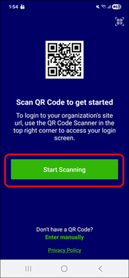
Allow the app to use your device's camera, then scan this barcode:

A FRAMECAD Communities login screen appears. Enter your Communities username and password, then tap Log In.
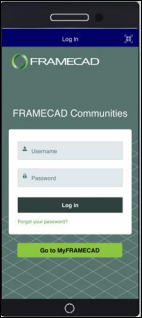
When prompted, allow the app to access your device information. A Welcome screen appears.
After your initial login, you will not be required to log in with subsequent uses of Engage.
Using Engage to request support from FRAMECAD
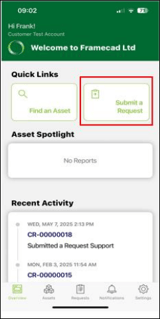
Open Engage and tap Submit a Request in the Welcome screen.
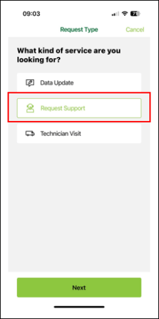
The Request Type screen appear. Tap Request Support then tap Next.
The Request Support screen appears. Enter request details, including your preferred number, and a date and time of day for a FRAMECAD support person to contact you. Then tap Next.
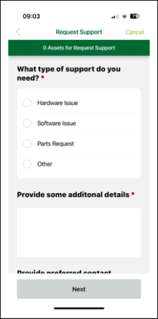
A screen appears with your customer request number. Tap Done to proceed.
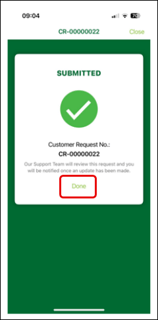
The Confirmation screen appear. Tap Edit to update a detail, if required. Tap Submit Request when ready.
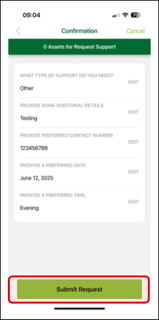
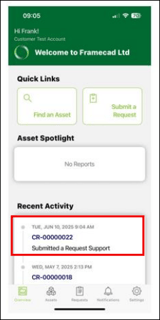
The Welcome screen appears again with the new request listed under Recent Activity.
Starting a chat with FRAMECAD
To start a chat, tap a request listed under Recent Activity in the Welcome screen.
The Request screen appears. Tap Chat.
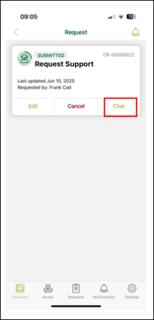
The chat function pops up. Tap the text field to send a message.
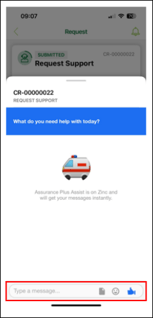
If the chat function does not pop up as illustrated above, try stopping the app and logging in again.
FRAMECAD automatically responds to your first message with a support request confirmation.
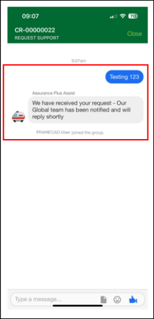
A support team member will reply as soon as possible.