
You should have a basic knowledge of computer-aided design (CAD) operations to be an effective Steelwise user.
TIP! FRAMECAD® recommends that users with no experience in CAD to undergo some professional training to supplement training in Steelwise.
About Steelwise and IntelliCAD
FRAMECAD built Steelwise on IntelliCAD, the industry standard for Windows-based CAD software development. Steelwise includes a combination of IntelliCAD and Steelwise-specific features, as well as common CAD commands and drawing operations. If you have worked with CAD software for Windows, you will be familiar with commands and drawing operations.
FRAMECAD's Steelwise help articles focus on the Steelwise-specific commands you will use to create a job, detail frames, and export RFY files.
Menus and commands
You can use Steelwise by selecting items in the Menu bar or Ribbon bar or by typing commands.
TIP! Typing commands saves time. You will likely use commands more often as you become more proficient.
Steelwise menu (Menu bar)
Click Steelwise in the Menu bar at the top of the window to find Steelwise settings and functions.

Steelwise tab (Ribbon bar)
Click Steelwise in the Ribbon bar for quicker access to common settings and functions. Type RIBBON to show it. Type RIBBONCLOSE to hide it.

Typing commands and using the Command bar
Enter commands by typing anywhere in Steelwise. View commands, prompts and options in the Command bar at the bottom of the window.
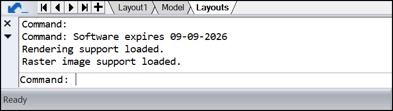
TIP! Click the Status bar to open the Command bar when it is hidden.
NOTE! Some commands can only be used in a specific space. See the Steelwise Reference Guide for a comprehensive list of commands and where they can be used.
About Shortcut toolbars and Status bar
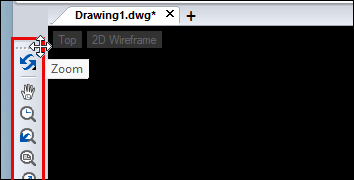
Shortcut toolbars appear on either side of the Steelwise window. Hover over the top dotted line to identify the toolbar. Click the dotted line to drag it to a new location.
Status bar
The status bar sits under the Command bar at the bottom of the Steelwise window. It includes additional information, such as cursor coordinates, toggles and settings.

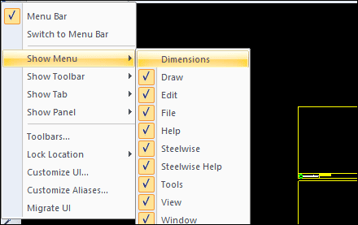
Showing and hiding menu items
To show or hide menu items:
| 1. Right-click the Menu bar, Ribbon bar, or any toolbar. |
| 2. Click Show Menu, Show Toolbar, or Show Tab. |
| 3. Select items to hide or show. |
About the Layouts, detail, and Model spaces
You will work in three spaces:
| • the Layouts space |
| • panel, truss, and floor detail spaces (e.g., Panel.1, Panel.2, Truss.1, Floor.1, etc.) |
| • the Model space |
Use the tabs (above the Command bar) to navigate spaces.
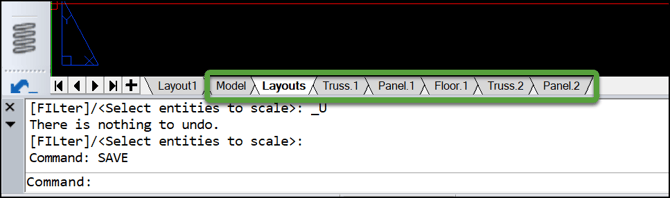
WARNING! Do not use the Layout1 space for drawing. The Layout1 space is for general CAD operations, notes, or project information only.
Layouts
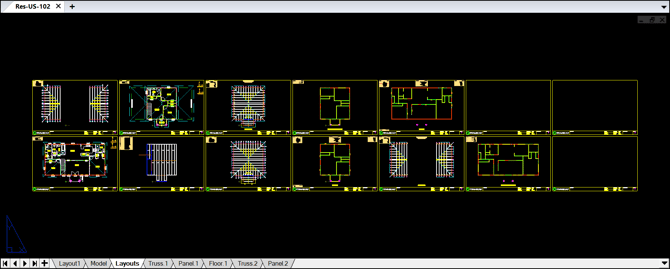
Use Layouts to draw wall, floor, and truss layouts within a set number of borders.
Detail spaces
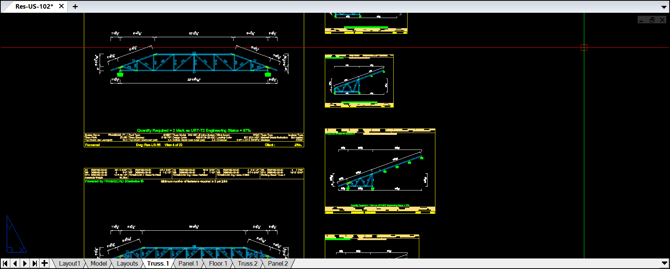
Use a detail space to view and update detail sheets (i.e., elevation views) of selected wall panels, floor frames, or joist frames.
NOTE! A detail space only appears when you run a _BUILDER command (i.e., when you type PPD, TTD, JJD, or SPD) in the Layouts space, select panels/frames to build, then click To Cad.
Model space
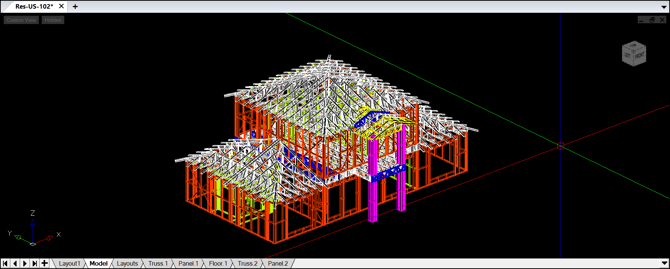
Use the Model space to view a 3D rendering of your job. You can generate a 3D model from the Layouts space or from a detail space using 3D commands (i.e., P3D, T3D, J3D or A3D).
CAUTION! You can set up a project to have a single space for both layouts and 3D models. FRAMECAD, however, recommends users keep these functions in their separate Layouts and Model spaces for easier project management.
Focusing on a border or detail sheet
To focus on a border (in Layouts) or a detail sheet (in a Detail space):
| 1. Type V and press Enter. |
| 2. Type the border or detail sheet number and press Enter. |
The specified border will be centered in the window.
NOTE! Some commands can only be used when a border is in focus.
Using your mouse in Steelwise
You will use your mouse to access menus, pan and zoom in a space and select items.
| Action |
Info |
| Left click | Select an item. |
| Left click + drag |
Select multiple items (click, drag left to right, click) in a blue fence. Only items completely fenced are selected. |
|
Select multiple items (click, drag right to left, click) in a green fence. Any item within or intersecting fence is selected. |
|
| Right click | End active command or repeat the last completed command. With items selected, click to activate a menu. |
| Scroll wheel actions |
Scroll up to zoom in, scroll down to zoom out. |
| Click and hold to pan the space. | |
| Double-click to zoom out to the full extent of the file. |