
Border setup (BSET)
| Command name: BORDER_SETUP | Space(s): Layouts space |
|
Purpose: Sets up borders (i.e., drawing sheets), sets design codes, and initializes a job file; specifies info to include in borders; changes border quantity; adds watermark or revision notes. |
|
|
Usage: |
|
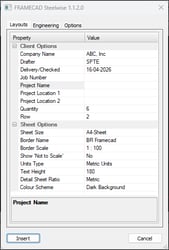
| 1. Type BSET and press Enter. A dialog appears. | |
 |
|
|
2. Enter settings in Layouts tab, Engineering tab, or Options tab as needed. |
|
|
3. Click Insert. |
|
NOTE! You will not be able to work on a job file until you finish the border setup.
BSET Layouts tab
| Client Options | Sets info to include in borders and sets border quantity and rows. |
| Company Name | Appears in borders in Layouts space and borders (i.e., detail sheets) in detail spaces. |
| Drafter |
Appears in borders in Layouts space. To also include in borders in detail spaces, use the Add Drafter to Detail Sheets setting. |
| Job Number | Appears in borders in Layouts space and detail spaces. |
| Project Name | |
| Project Location | Appears in borders in Layouts space. |
| Quantity | Sets the number of borders to add to Layouts space (maximum 27). |
| Row | Sets the number of rows for the borders in the Layouts space. |
| Sheet Options | |
| Sheet Size | Sets the size (A4, A5, Letter, Legal, etc.) of the borders in Layouts. |
| Border Name |
Defaults to BR FRAMECAD. Select BR BLANK BORDER to create a custom border. |
| Border Scale | Defaults to 1:100 (metric) or 1/8":1'0" (imperial). |
| Units Type | Sets the job file to use metric or imperial units. Note: This cannot be changed after you run BSET initially. |
| Text Height | Sets the font size for dimensions and labels that appear in borders. |
|
Detail Sheet Ratio |
Sizes borders in detail spaces relative to a specified sizing. |
|
Colour Scheme |
Sets the background color to dark or light. |
| Various Tools | Only appears when you type BSET after initial border setup. |
| Water Mark | Sets a text message to display diagonally across all borders in the Layouts space. |
| Add Revision | Inserts a numbered revision note outside the bottom left corner of the first border in the Layouts space. |
| Reset Revision | Deletes revision notes from the Layouts space. |
BSET Engineering tab
| Design Codes | |||||||||||||
| Loading Design Code | Sets the regional building code required for the job. | ||||||||||||
| Steel Design Code | Sets the steel design code required for the job. Options are determined by the selected Loading Design Code. | ||||||||||||
| Loading Earthquake Code |
Defaults to None. Steelwise design methods assume a low seismic hazard (i.e., light to moderate seismic events and lightweight building). A code will be required for high seismic regions, mid-rise buildings, or heavy buildings with materials such as brick cladding or concrete floors. Consult the relevant seismic code or your project engineer for guidance. |
||||||||||||
| Wind Speed |
Sets the wind speed or wind category suitable for the job, along with additional wind options, if required. Wind speed/category and wind options are determined by the selected Loading Design Code. |
||||||||||||
| Panel Engineering |
|
||||||||||||
| Brace Engineering |
|
||||||||||||
| Joist Engineering |
Defaults to Enabled. |
||||||||||||
| Truss Engineering | |||||||||||||
| Roof Live Load |
Determined by the selected loading design code. |
||||||||||||
| Downgrade Material |
Select Do Not Downgrade for Steelwise to perform calculations using the grade specified in the selected data file (System Name) in Machine Configuration. Select Downgrade Material to set Steelwise to perform calculations using a lower-strength material. |
| Loading Earthquake Code | Only appears if you select a code for Loading Earthquake Code. |
| Sets the Foundation Type, Importance Level, Structural Response, Seismic Hazard Coefficient, and Fundamental Period. Consult relevant seismic code or your project engineer for guidance. | |
| Design Options | |
| Continuity Loads |
Select True to increase the tributary width of internal spans in joists by 25% when calculating loads. |
BSET Options tab
|
Drawing Options |
|
| Post Beam Data File |
Sets data file to use for selecting, naming, and dimensioning posts. |
| Aperture Size | Sets the selection area (1px - 50px) for snapping to entities. |
| Pick Box Size | Sets the visible area of the cursor (1px - 50px). |
| Roof Line Colour | Sets color to use when creating (CRL) or coding (RL) a roof line. |
| Support Line Colour | Sets color to use when creating (CSL) or coding (SL) a support line. |
| NS Support Line Colour |
Sets color to use for non-structural support lines. |
| Roof Line Type | Sets roof lines as dotted, dashed, hidden, etc. |
| NS Support Line Type | Sets non-structural lines as dotted, dashed, hidden, etc. |
| Disable Stud Locking Prompts | Prevents Steelwise from warning you when a command will override manually edited (or locked) studs. |
| Disable Layout Titles | Prevents Steelwise from automatically generating titles for borders in the Layouts space. |
|
Use Sheet Level Id's |
Sets Steelwise to prompt you to specify a level (e.g., ground level, first floor) to include in a border's label when you type LA. |
| Draw Web Lines | Use explicit lines (instead of a centerline) to depict webs. |
| Draw Lip Lines | Depict lipped steel sections in detail sheets. |
| Add Drafter to Detail Sheet |
Includes drafter name (as set in Client Options) in borders in detail spaces. |
| Layout Dimension Options | |
| Linear Dimensions | Sets how Steelwise measures distances (i.e., front edge to front edge, centerline to centerline, etc.) between joists or between trusses when you type DM. Allows you to stagger dimensions to make them easier to read. |
| Ordinate Dimensions | Sets how Steelwise measures distance to a member when you type DO. |
| Width Options |
Shows panel, truss, or floor widths when dimensioning a member (DM); sets the minimum length a frame must be to include width. |
| 3D Options |
Sets how Steelwise renders panels/frames in the Model space |
||||||||
| Use Simple Floor 3D | Renders joists, walls, or trusses in outline only, even after running a builder command (JJD, PPD, TTD). This is useful for very large jobs where frames will look cluttered or for rendering on under-resourced systems. |
||||||||
| Use Simple Panel 3D | |||||||||
| Use Simple Truss 3D | |||||||||
| 3D Method settings |
Sets what color to use to render panels, trusses, joists, or sheds in 3D.
|
||||||||
| Custom Colour settings |
Sets what color to use for panels, trusses, floors, or sheds when you select Use Custom Colour for 3D Method. |
| Layer Names | |
|
Temp Layer names for Temp Layer 0 to Temp Layer Five |
Sets a custom name for a specified temporary layer. |
| Visibility Level (%) | Sets the opacity of all temporary layers. |
| Reference Options | |
| Primary Colour | Sets the color for primary or secondary reference points. |
| Secondary Colour | |
| Visibility Level (%) | Sets the opacity of all reference points. |
| Print Reference | Includes reference points in printouts. |
| Layer Name | Sets a custom name to use for the reference points layer. |
| Gridline Options | Sets options for when you type GL to draw a grid in a border. |
| Gridline Line Layer | Sets a custom name for the line layer or text (i.e., line number or letter) layer. |
| Gridline Text Layer | |
| Gridline Line Linetype | Sets the gridline line type, and the line and text color. |
| Gridline Line Colour | |
|
Gridline Text Colour |
|
| Gridline Text Factor |
Defaults to 2.0. The final text size = text factor x Text Height (in the Gridline Editor). |
| Numeric is Horizontal | Select Yes to label horizontal lines with numbers, vertical lines with letters. Select No to label vertical lines with numbers, horizontal lines with letters. |
| Prompt for Marker Text |
Select No to automatically label lines with a number or letter (in sequence) as you draw them. Select Yes to manually enter a label when prompted. |
| Show Finishing End Marker |
Includes the label (number or letter) at the start and end of the line. |
| Show Gridline Line | Select No to hide the gridline and only show the line label(s). |
| Do Not Extend to Border | Defaults to Yes. Select No to have lines span a border. |
| Export Options | |||||||||||
| IFC Export Flavour |
|
||||||||||
| IFC Invert Colours | Defaults to False. | ||||||||||
|
Use Clones |
Identical members get a single definition but are read as separate placed objects. | ||||||||||
| Export Wall Joins | Prints adjoining end wall labels on the first and last stud. | ||||||||||
| Use Reverse Order | Exports panels from top to bottom (instead of bottom to top) if you run the PANEL_STACK (PST) command. | ||||||||||
| Export Header Text in XML | Prints the L-plate type and quantity on the opening header member. | ||||||||||
| Export Arrows in Wall | Prints wall direction arrows on the bottom plate. | ||||||||||
| Export FIM all to One file | Creates a single FIM when you select Steelwise > Exports > FIM Export All (click for more info on exporting). | ||||||||||
| VRML Swap Y and Z coordinates | Changes the orientation to ensure the model is displayed correctly when opening the exported file in third-party software. | ||||||||||
| RFY Ordering |
|
||||||||||
| RFY Export Files | Select Single File (Factory2 filters out material not set up for the roll-former) or By Section to export a separate file for each different material that will be used. | ||||||||||
| RFY 2D Drawing Data | Defaults to False. |
| Folder Settings Information | |
|
Sets the local folders where various files and data will be saved. |
|
| BSET Tooling Options | |
| Live Tooling Enabled | Renders tooling (e.g., punches, dimples, notches) as you work. Select False to work on large files or with underpowered PCs. |
| Show Graphics in PDF |
Includes tooling when exporting drawing sheets as PDFs. |
| Treat K-Brace as Plate |
Exports as plate member instead of stud member. |
| Truss Rails to be Tabbed over Chords | Tabs the rail over the top chord (with rail notched). Select False to run rail into top chord (with top chord notched). |